
- Item Name : Rejuan - Portfolio WordPress Theme
- Item Version : v 1.0.0
- Author : TheBitCraft
Welcome to documentation. First of all thanks for purchasing our theme. We hope you will be satisfied with our work, and this theme will be useful in your projects.
This documentation is to help you regarding each step of customization. Please go through the documentation carefully to understand how this template is made and how to edit this properly.
Note: For better performance disable the default colors and fonts in Elementor > Tools.
If you have any questions that are beyond the scope of this documentation, please feel free to request support. Thanks so much!
Created: 08/2026
Latest update By: TheBitCraft
WordPress Setup
To install this theme, you must have a working version of WordPress already set up. If you need help installing WordPress, please follow the instructions in the WordPress Codex.
If you are new to WordPress, I recommend checking out these useful resources to help you set up and use WordPress:
- WordPress Codex – General information on installing WordPress on your server.
- First Steps with WordPress – A brief overview of the WordPress admin panel.
- FAQ: New to WordPress – Useful "how-to" guides for beginners.
Server Requirements
To use Rejuan WordPress Theme, your server must meet the following requirements:
- A clean WordPress
6.7(or later) installation. - PHP
7.4(or later). - MySQL
5.6(or later). - WP memory limit of 256 MB (for Elementor and Elementor Pro only), 512 MB recommended, 768 MB for best performance.
- Elementor plugin version
3.25.0(or later).
Recommended PHP Configuration ( php.ini)
- memory_limit = 512M
- upload_max_filesize = 32M
- post_max_size = 32M
- max_execution_time = 600
What's Included?
After you've made a purchase on Themeforest, you'll need to download the theme files from your Themeforest account. To do this, simply navigate to the Downloads tab and find the purchased item Rejuan - Portfolio WordPress Theme.
You can choose to download everything or just the WordPress theme .zip archive. The difference is explained below.
All Files & Documentation
In the package, you will find:
- 📄 rejuan.zip - main theme file. You can install it through the WordPress admin panel. If you install it via FTP, unzip it first and use the extracted folder.
- 📄 rejuan-child.zip - child theme. For advanced users who are about to make code changes.
- 📁 Documentation - folder with the user guide.
- 📁 Licensing - all the legal information.
- 📁 Bundled Plugins - archives of the plugins required by the theme.
- 📁 Elementor Templates - all the templates showcased in the theme demo. You can selectively import these templates into Elementor and use them on your site pages instead of importing the whole demo data.
Missing demo content files for manual import?
Once the theme is activated in WordPress, a setup wizard will appear. It will install the required plugins, download, and import all the demo files automatically for you. After the demo import, you should get a 1:1 copy of the theme live demo on your web server. Since there is no need to import demo content manually anymore, theme demo files are not supplied in the download package.
For more information, please refer to Wizard Setup
Installable WordPress file only
rejuan.zip - main theme file. You can install it through the WordPress admin panel. If you install it via FTP, unzip it first and use the extracted folder.
Theme Installation
Installing via WordPress Panel
Extract package that include all files and folders of theme. When done, you should see rejuan.zip (zip file name can be changed from version to version).
Follow the steps below to install the theme through the WordPress admin panel:
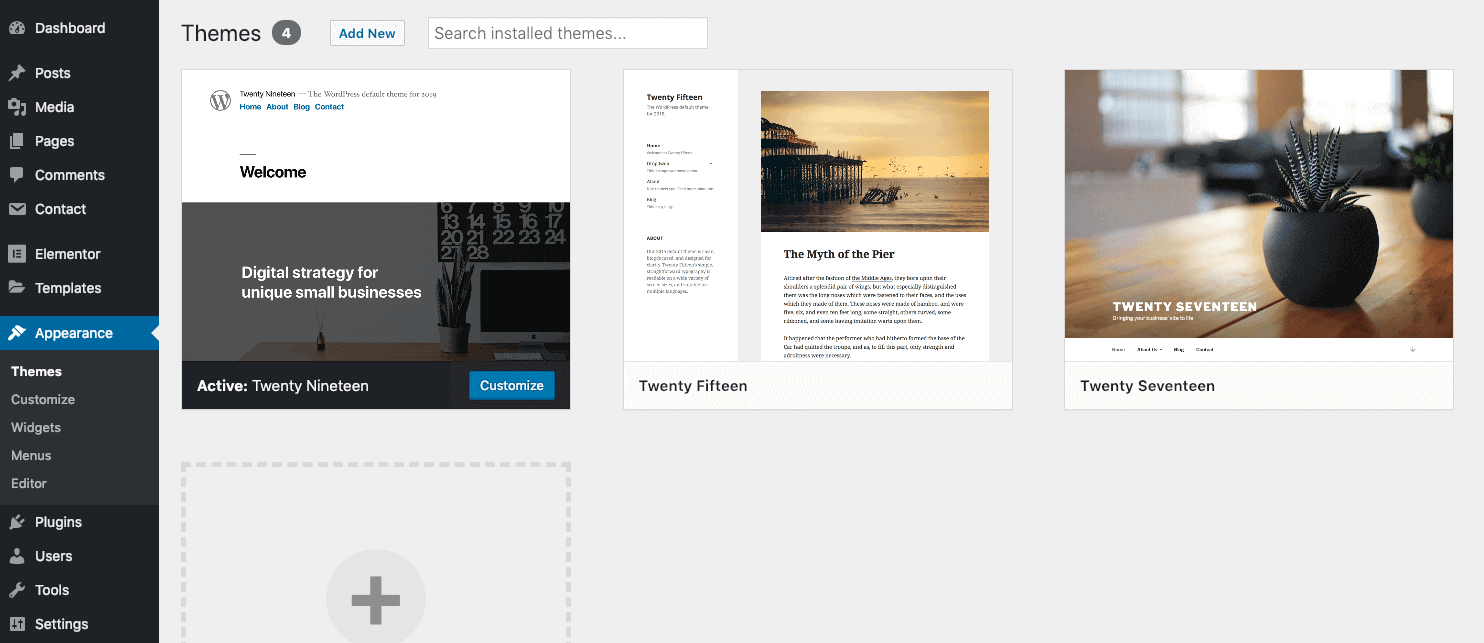
- Step 1: Navigate to Appearance → Themes and click Add New Theme.
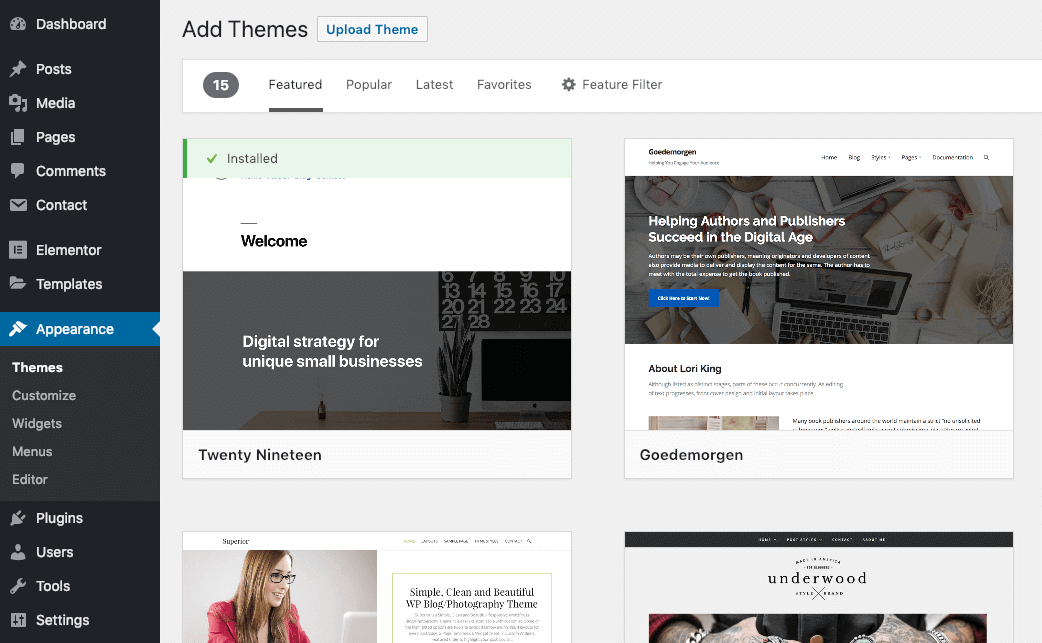
- Step 2: Click Upload Theme.
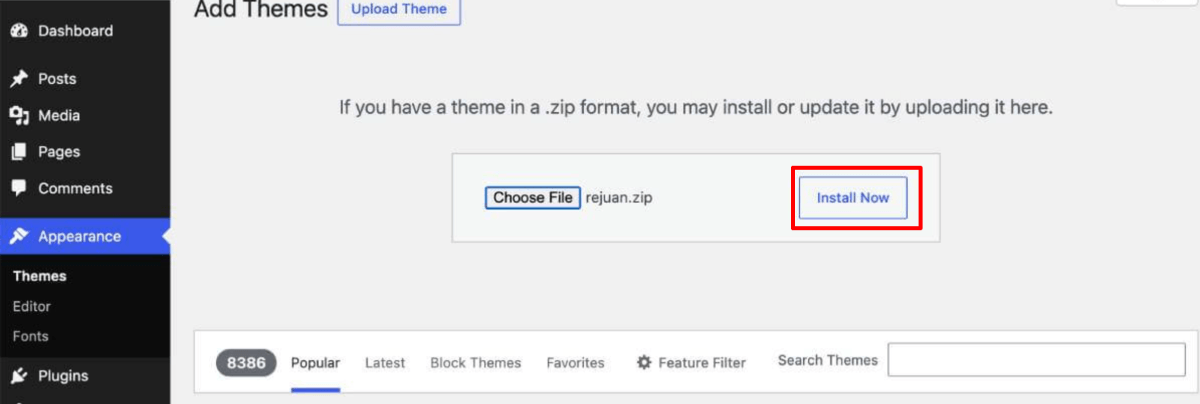
- Step 3: Select your downloaded theme file rejuan.zip and click Install Now.
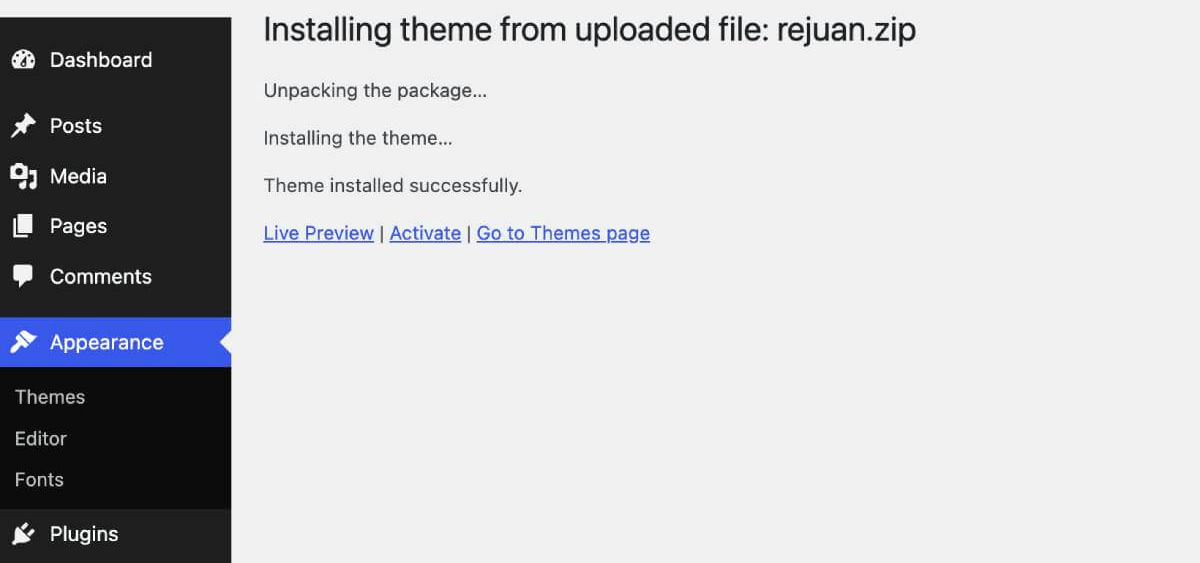
- Step 4: Wait while the theme is uploaded and installed then activate the theme.
Theme Installation → Plugins Installation
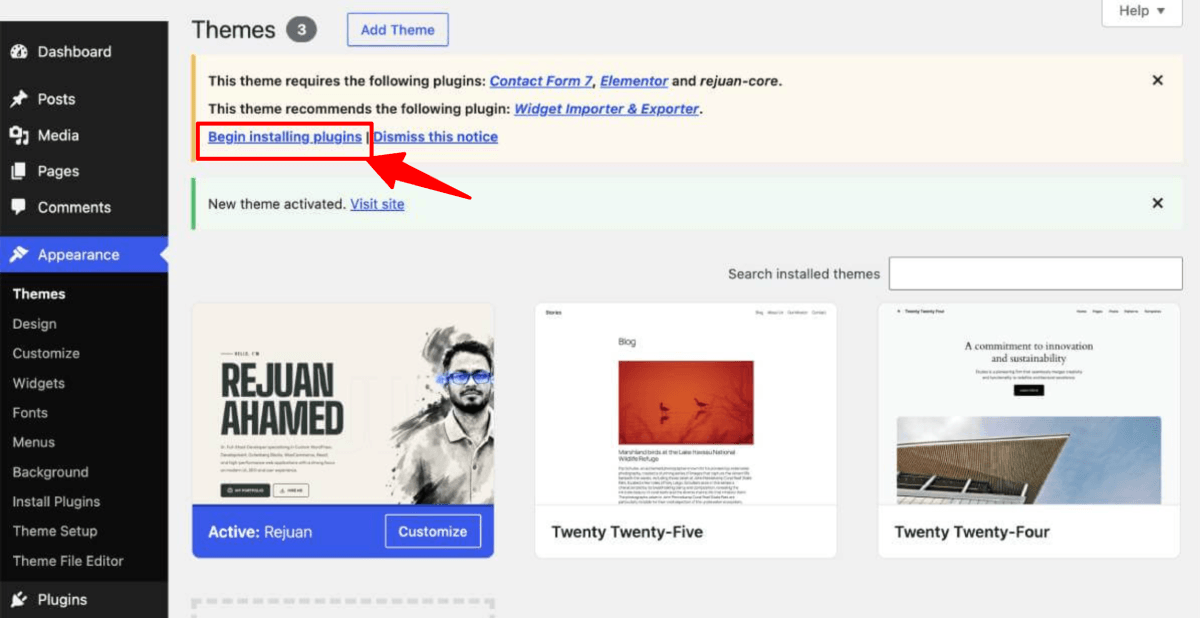
Right after the theme was activated, a notification at the top of the screen will suggest to continue with the installation of the plugins recommended for getting the best our of your theme.
Follow the installation steps below:
Step 1. Click ‘Begin installing plugins‘ and select the plugins you need to install from the list.
Step 2: Select all plugins then choose Install , Click Apply to install all plugins
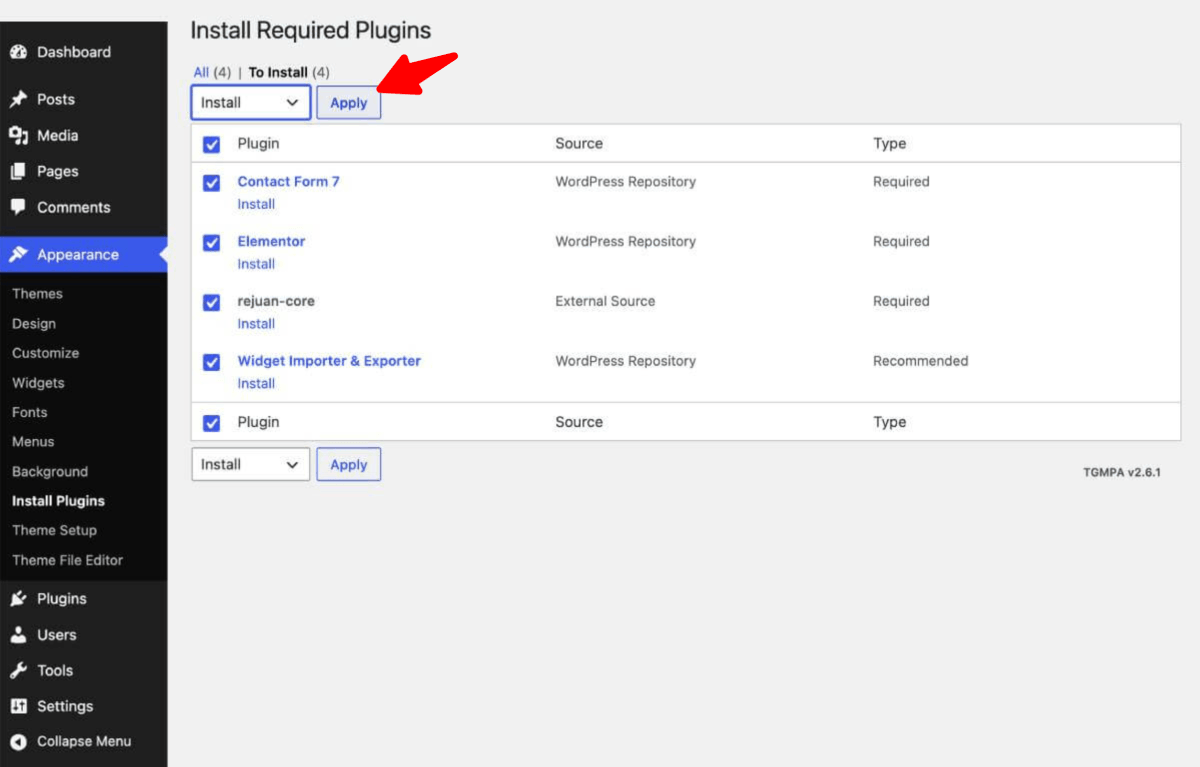
Plugins Using in rejuan theme
- Contact Form 7: Allow you create contact forms on Contact Page.
- Elementor: powerful Elementor to create page layout
- Rejuan Core: Theme require plugin
- Widget Importer & Exporter: Importer & Exporter plugin
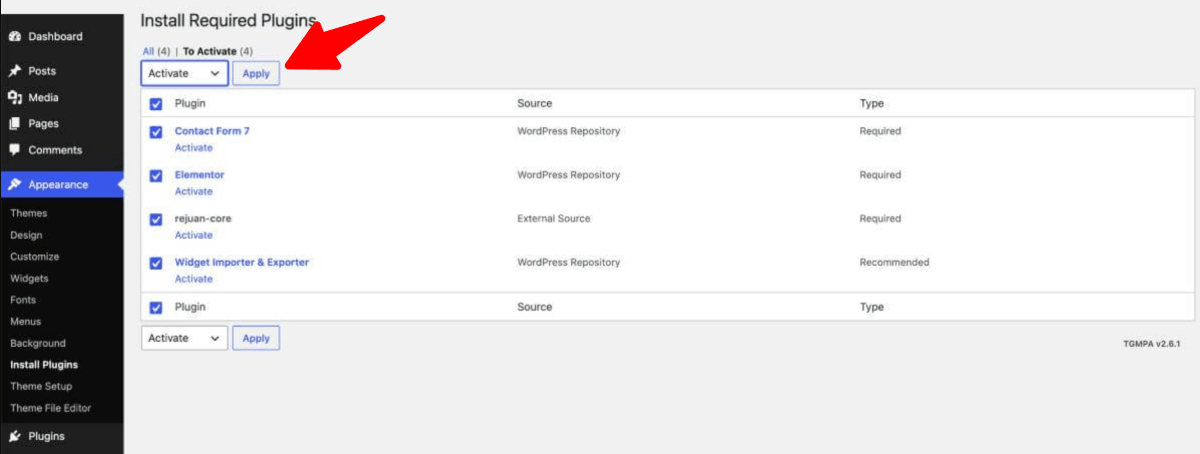
Step 3: After Installing all Plugins, select Activate then click Apply to active all plugins.
Theme Installation → Install Data Demo
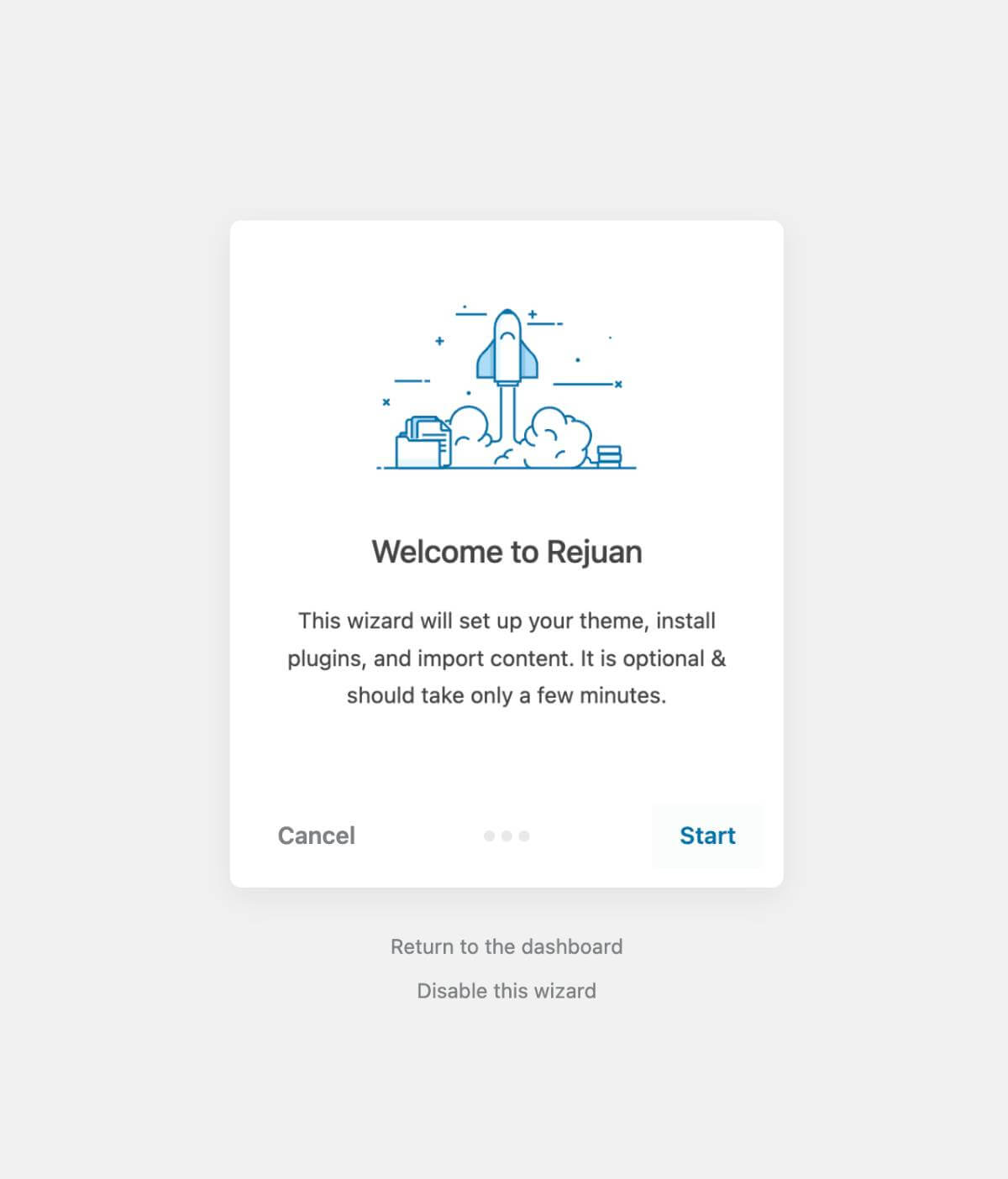
Step 1: Go to Appearance → Theme Setup → Click to Start
Step 2: Install Child Theme
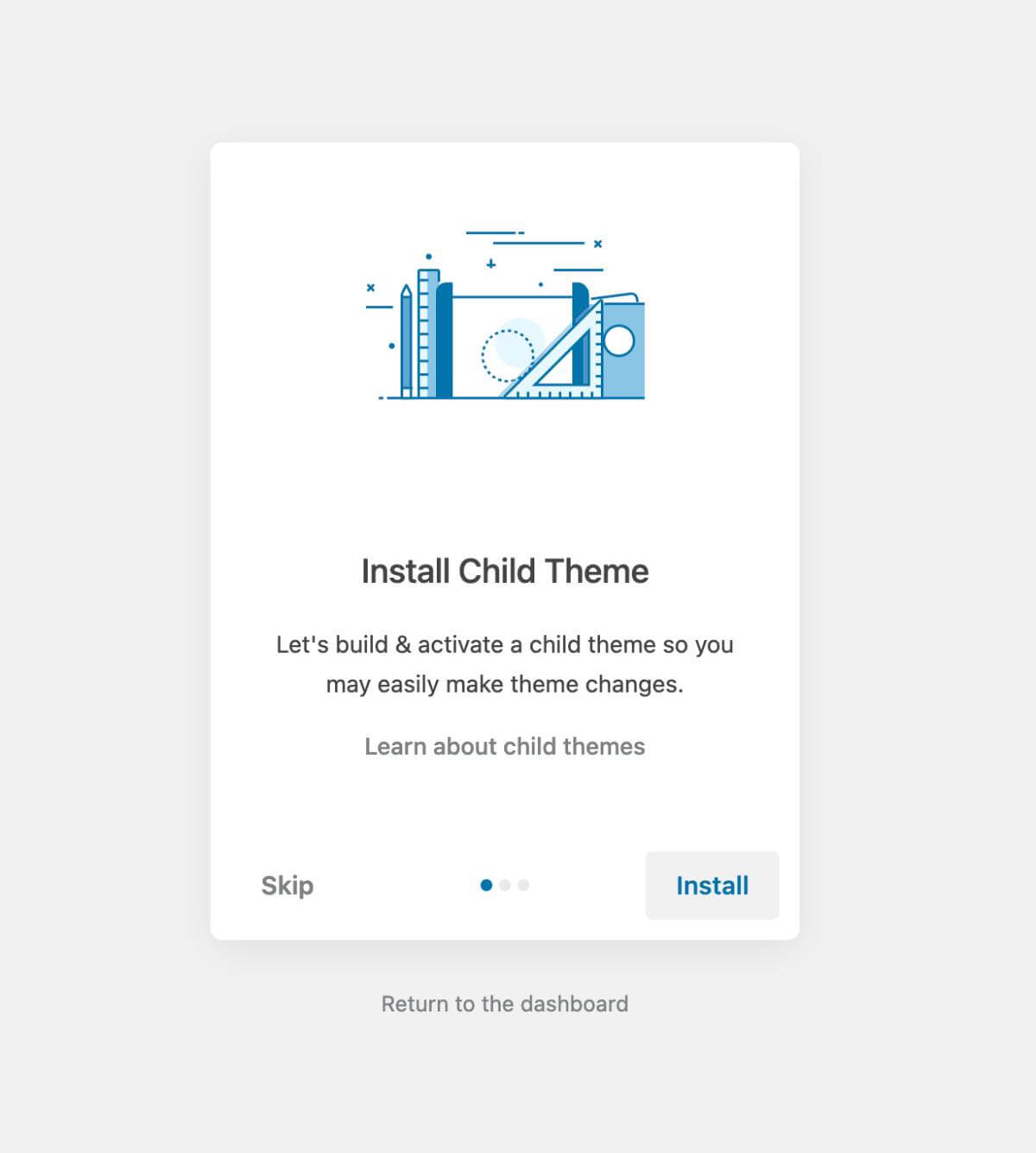
Step 3: Import Content: click on Import
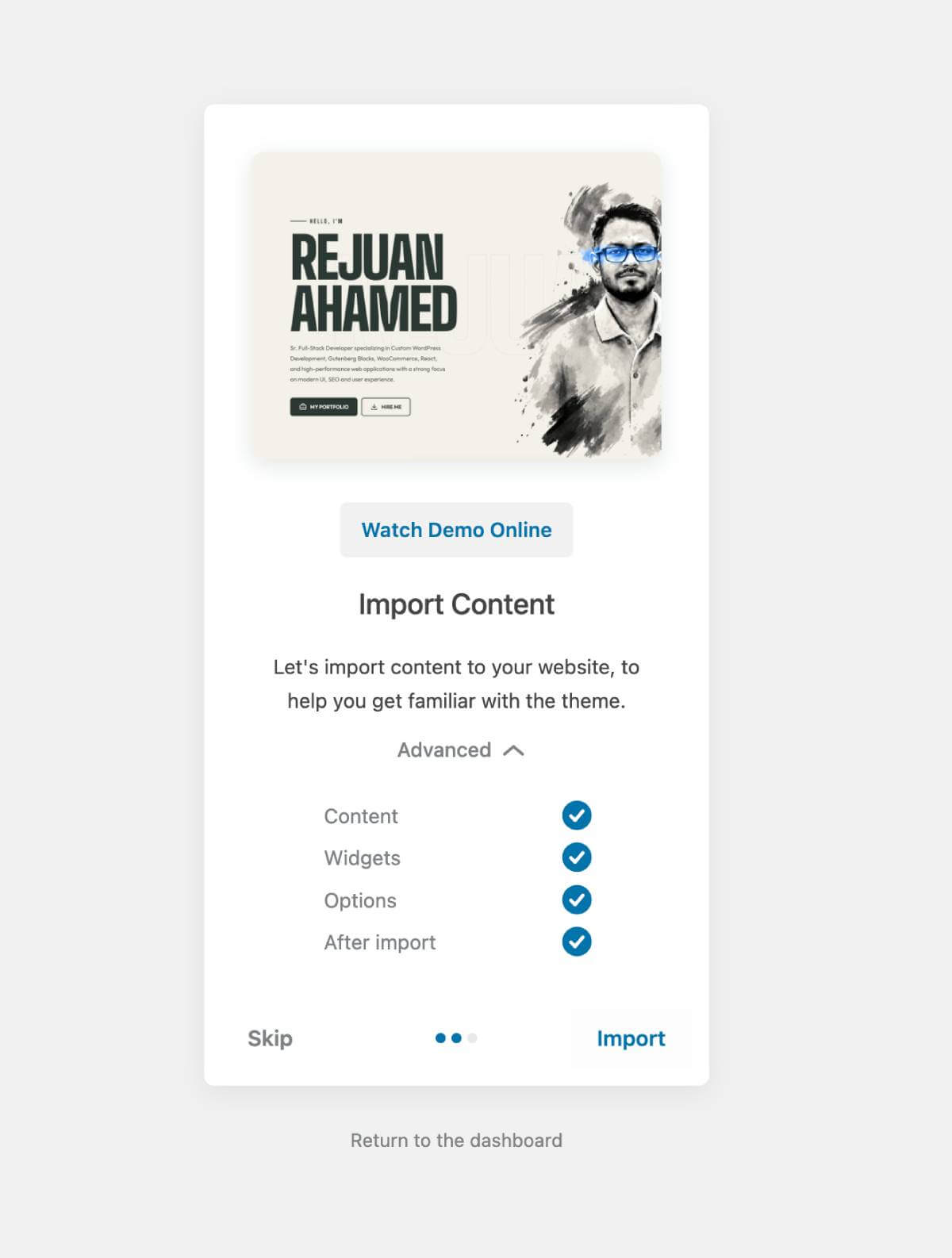
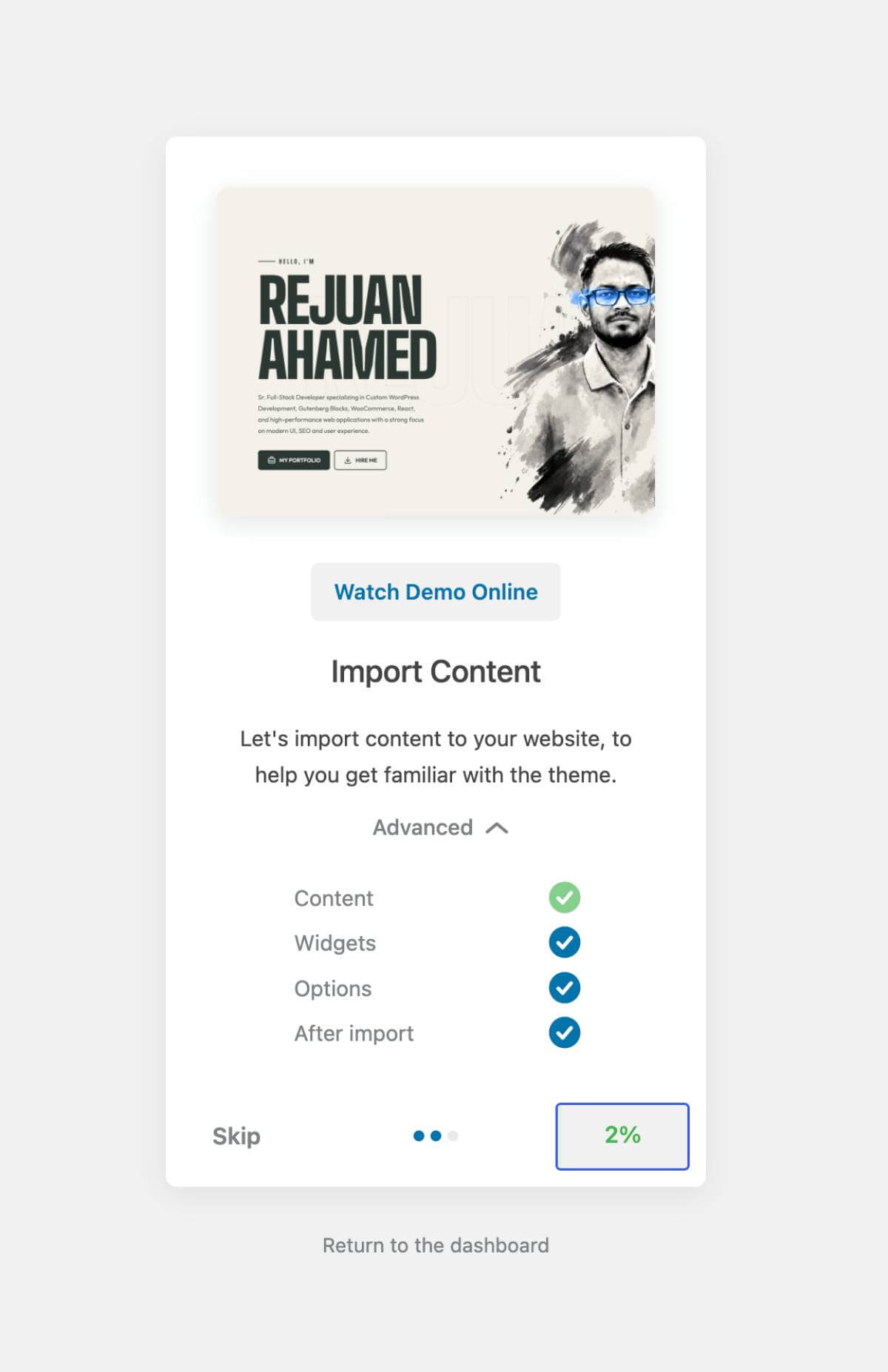
The process may take some time. Please wait...
Import the theme's demo data to your WordPress installation. Normally, this can take about 4-5 minutes depending on your server location and bandwidth.
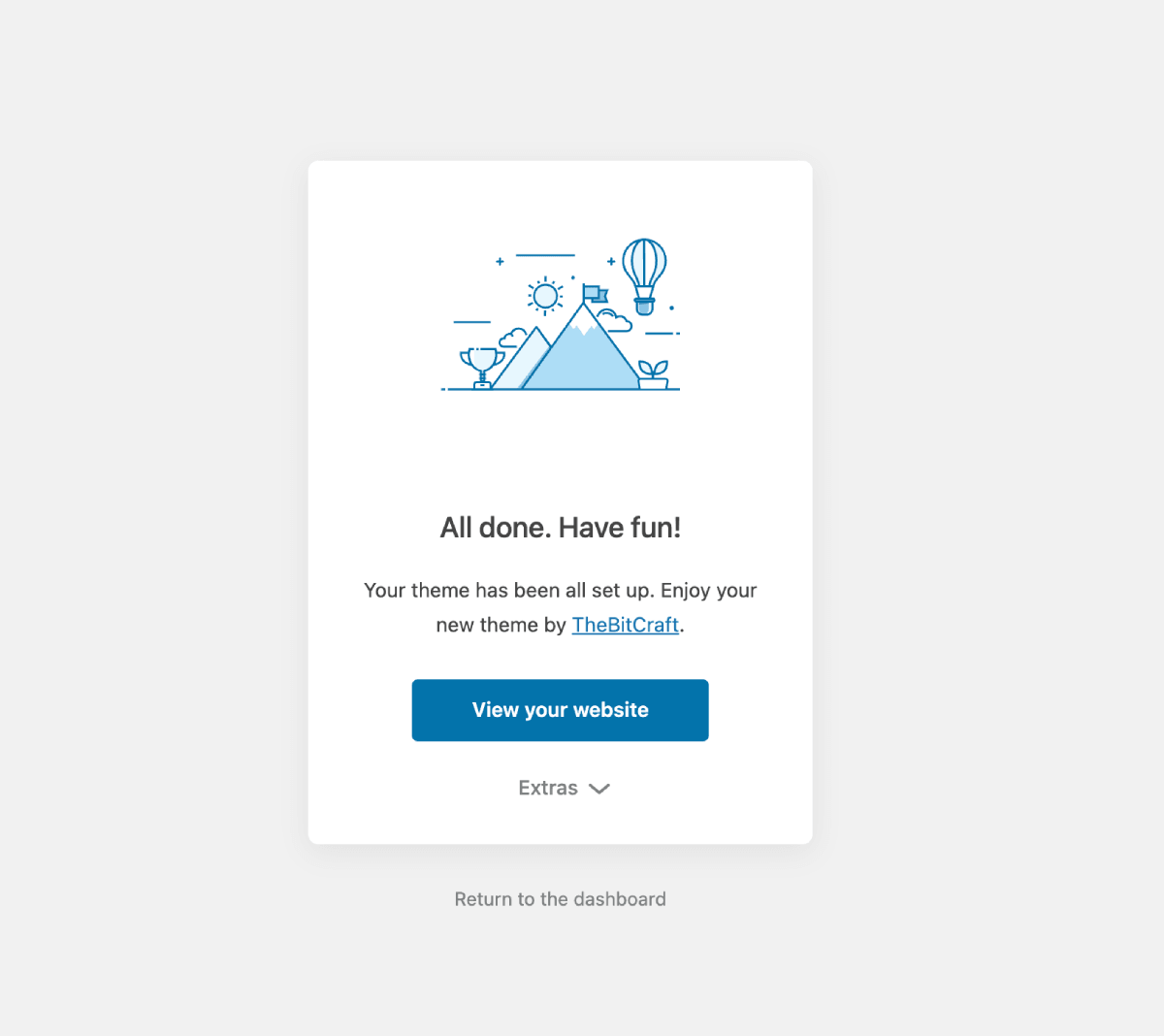
🎉 🎉All done. Have fun!
Change Permalink
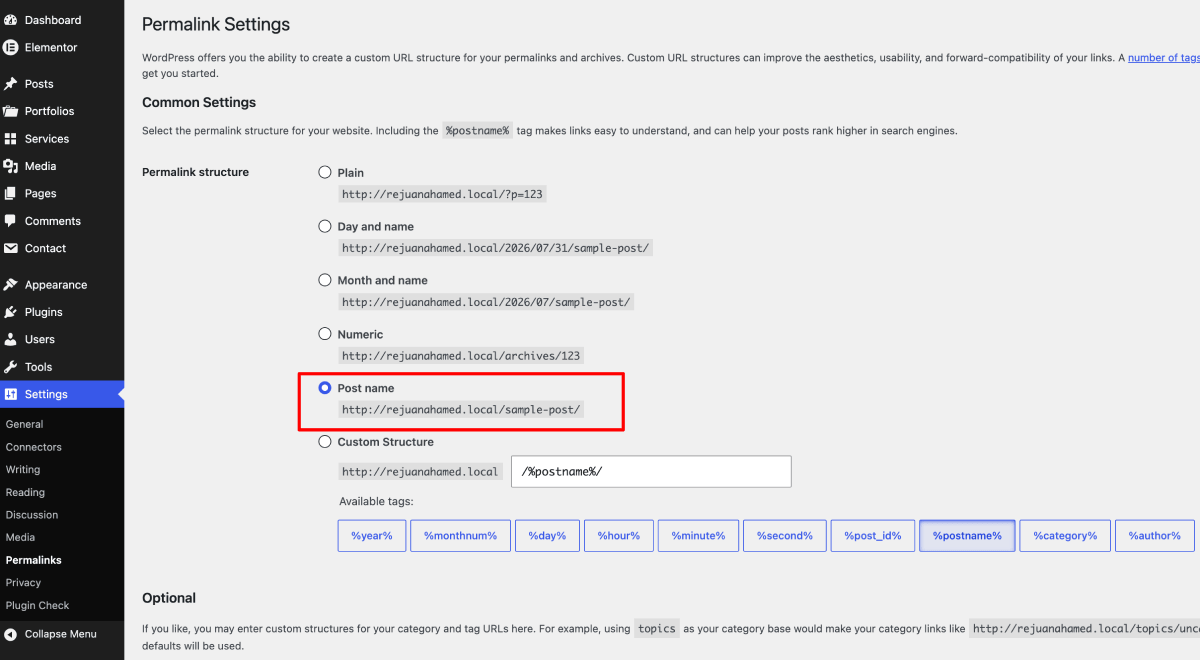
Go to Dashboard → Settings → Permalinks. Under Permalink Structure, select Post name and click Save Changes.
Theme Features
Rejuan - Portfolio WordPress Theme comes with powerful features designed to help you create stunning portfolio and business websites. Below are the key features that make Rejuan stand out:
1. Two Homepage Designs
Rejuan offers two beautifully designed homepage layouts to choose from, giving you flexibility in how you present your brand:
- Homepage Variation 1: Modern landing page style with hero section, perfect for personal portfolios and freelancers who want to make a strong first impression.
- Homepage Variation 2: Classic multi-section layout with comprehensive content blocks, ideal for agencies and businesses that need to showcase more information.
Both homepage variations are fully responsive, RTL-compatible, and can be easily customized using Elementor page builder. You can switch between layouts or create your own unique design by mixing and matching sections.
2. RTL Support (Right-to-Left)
Built-in RTL support for languages written from right to left. This feature makes Rejuan perfect for multilingual websites targeting global audiences.
Key RTL Features:
- Automatic Layout Mirroring: Entire layout automatically adjusts for RTL languages
- Right-Aligned Navigation: Menus and submenus align perfectly for RTL reading direction
- Full Theme Compatibility: Works seamlessly on both homepage variations and all inner pages
- Supported Languages: Arabic (العربية), Persian/Farsi (فارسی), Urdu (اردو), Bengali (বাংলা), and other RTL languages
- Elementor RTL: All 11 custom widgets are fully RTL-compatible
- Easy Toggle: Enable/disable RTL with a single checkbox in Customizer
Location: Appearance → Settings → General Settings and then Site Language and then select your language. ex. Arabic (العربية)
3. Elementor - 11 Premium Widgets
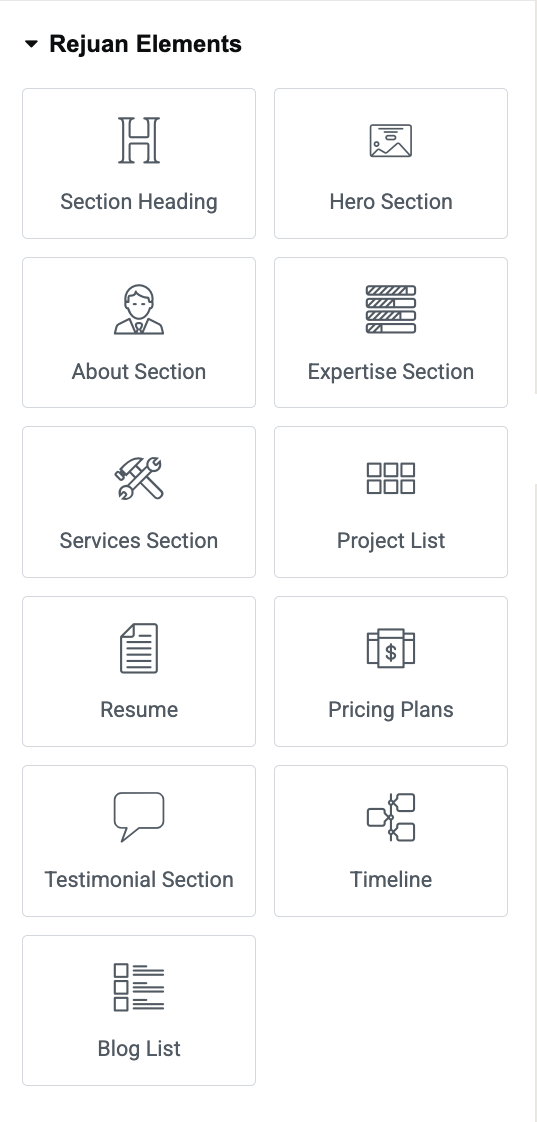
Rejuan includes Rejuan Core, a custom plugin that provides 11 powerful Elementor widgets specifically designed for portfolio and business websites:
Widget List:
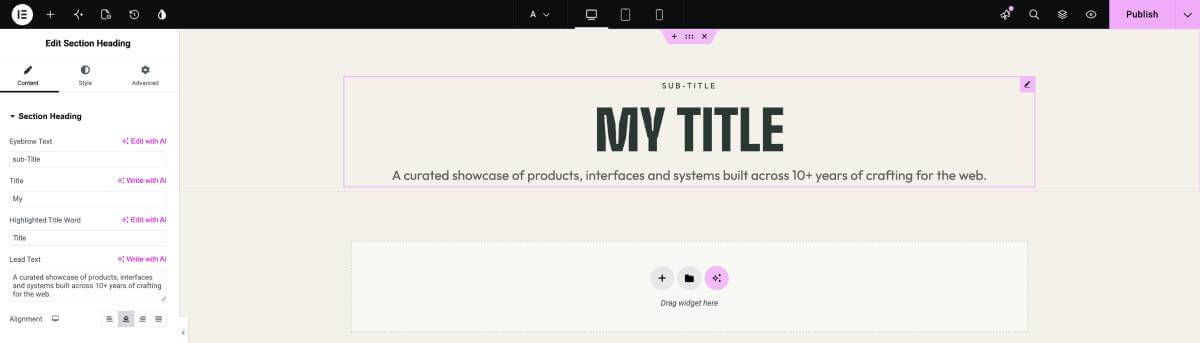
- 1. Heading Widget: Create stylish headings with custom typography and styling options
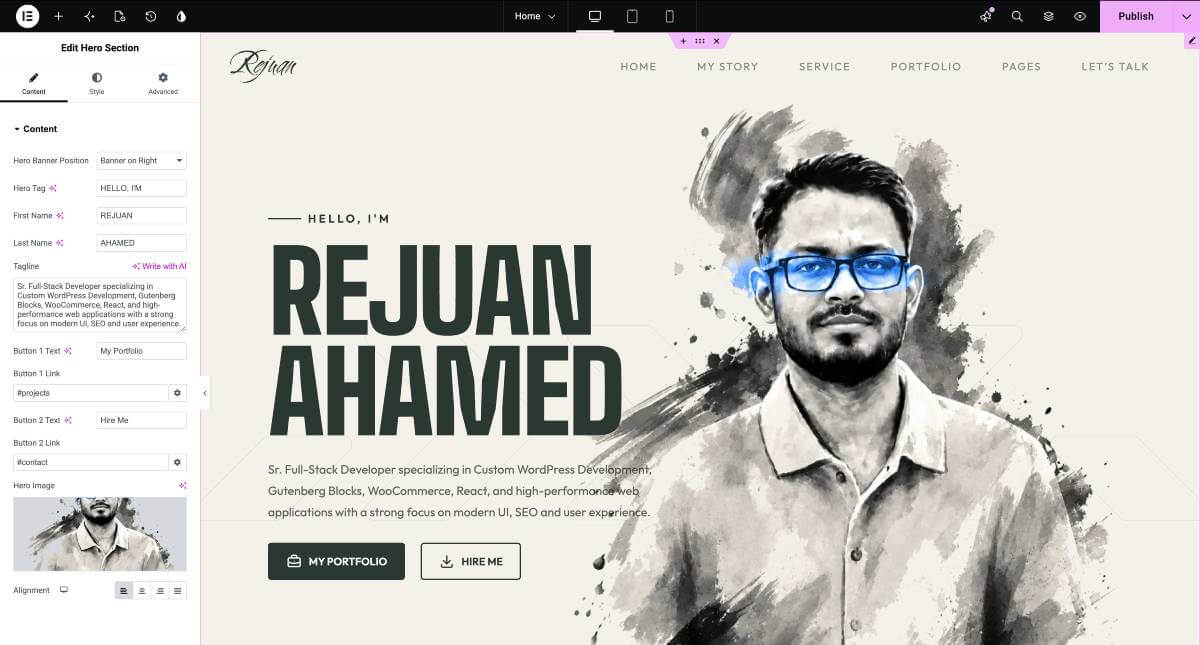
- 2. Hero Section Widget: Build stunning hero sections with background overlays, animations, and call-to-action buttons
- 3. About Section Widget: Showcase your personal info, skills, and achievements with creative layouts
- 4. Expertise Section Widget: Display your areas of expertise with icons and descriptions
- 5. Services Section Widget: Present your services with customizable columns and hover effects
- 6. Project List Widget: Create beautiful portfolio/project grids with filtering and popup options
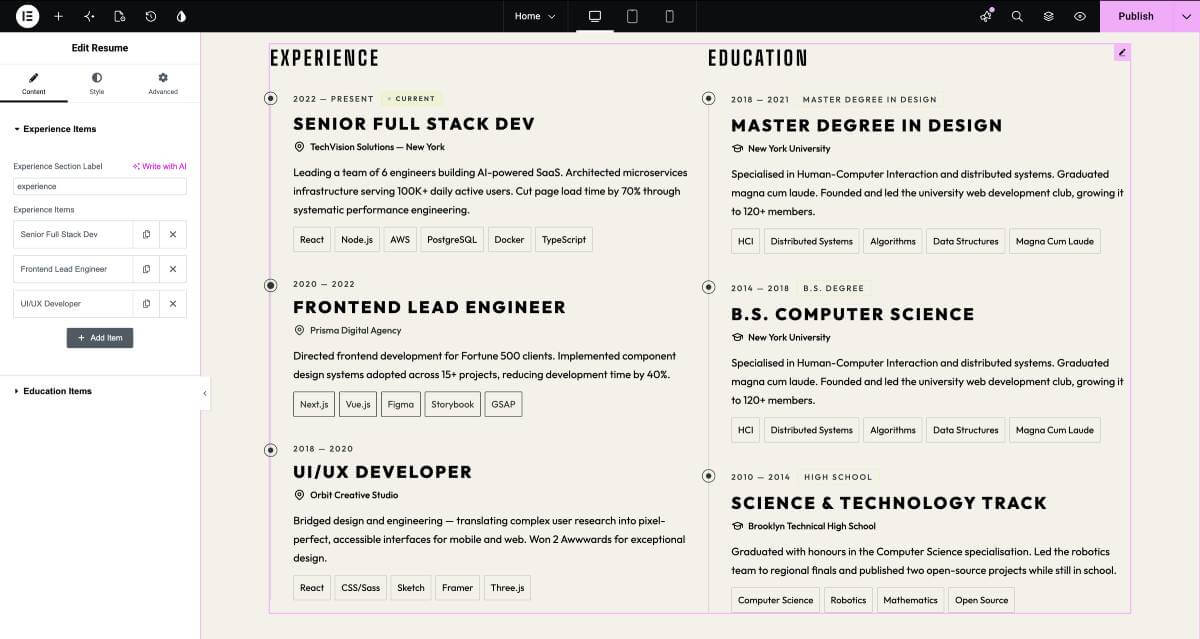
- 7. Resume Widget: Display your work history and education with timeline-style layouts
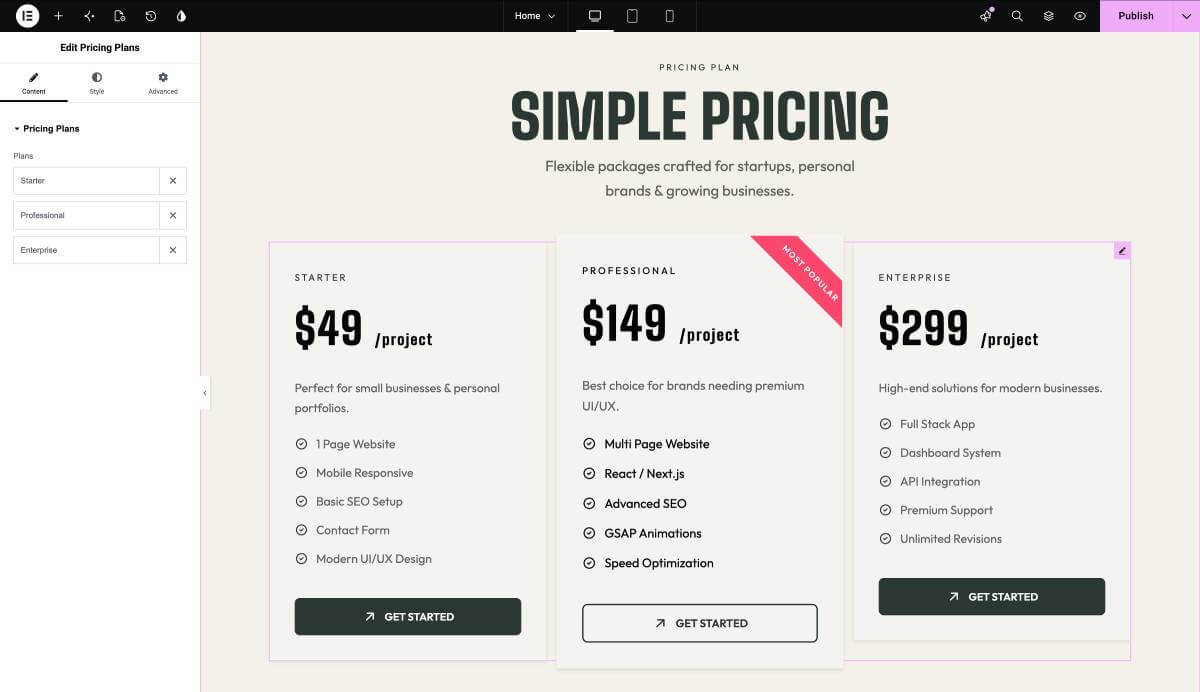
- 8. Pricing Plans Widget: Showcase pricing tables with attractive designs and features lists
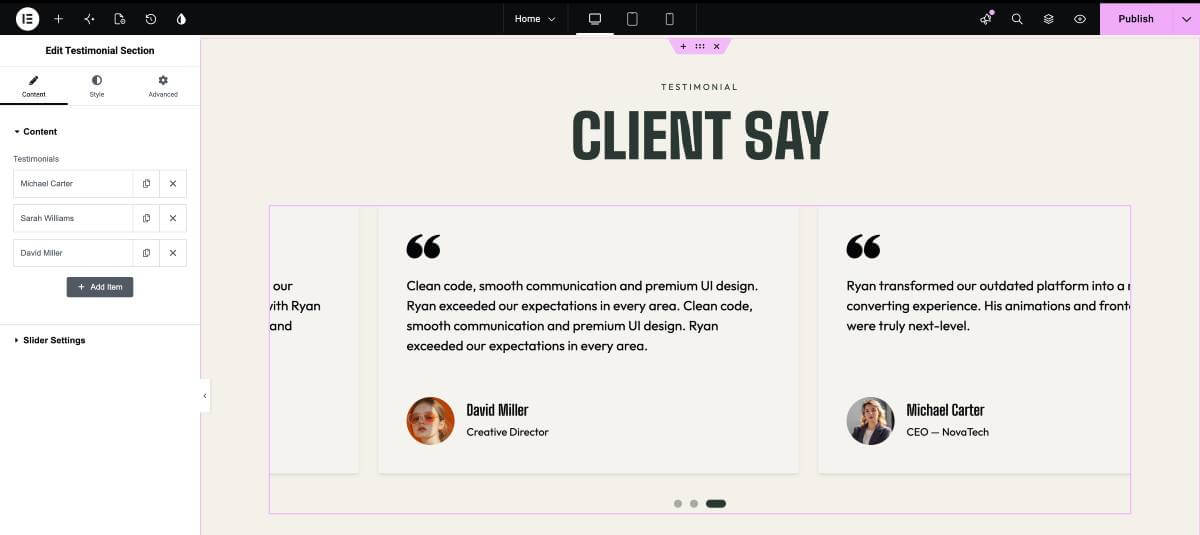
- 9. Testimonial Section Widget: Display client testimonials with carousel layouts
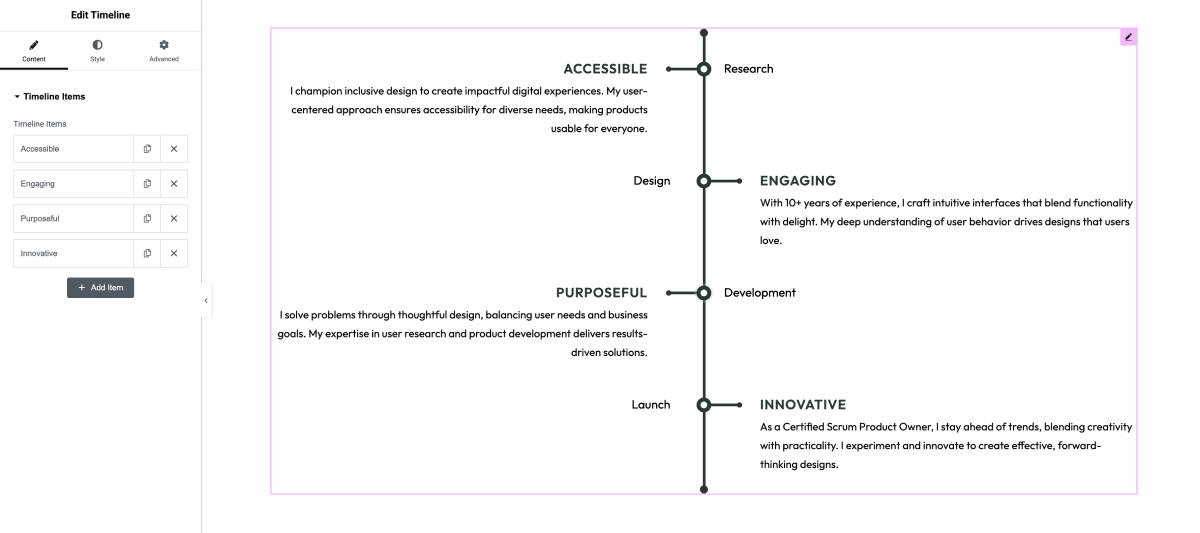
- 10. Timeline Widget: Create vertical timelines for achievements, milestones, or company history
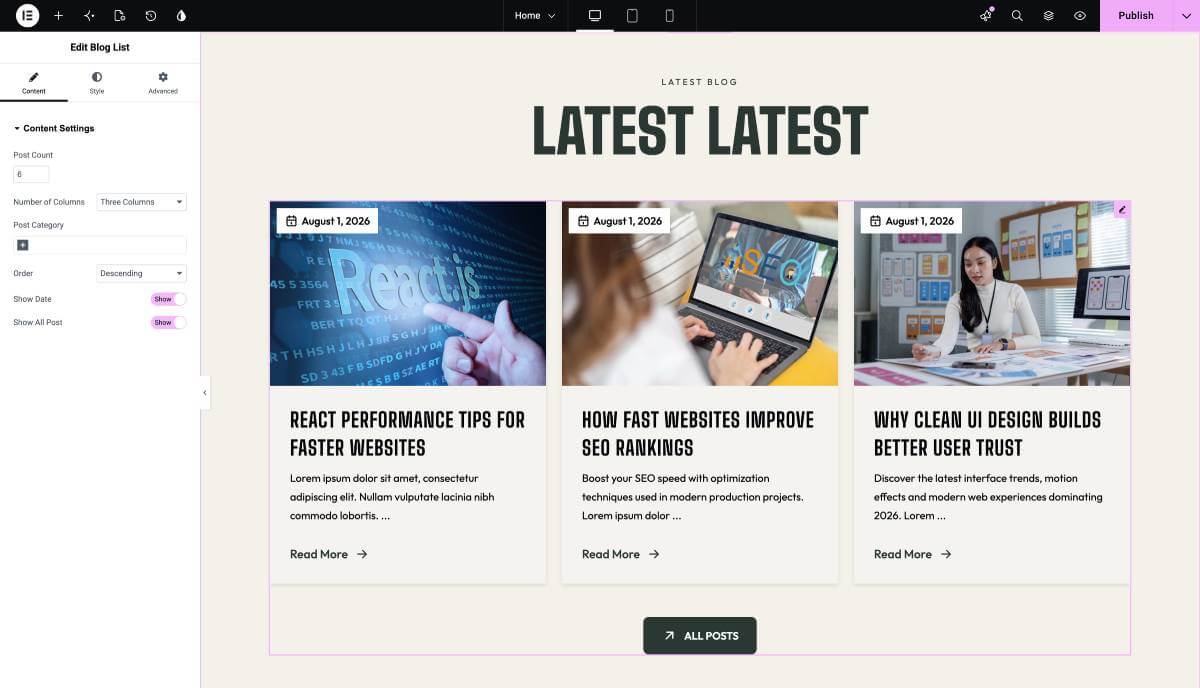
- 11. Blog List Widget: Display blog posts in grid or list layouts with various styling options
All widgets feature:
- Full RTL compatibility
- Responsive design for all devices
- Extensive customization options
- Easy-to-use interface
- Pre-designed templates included
4. Multilanguage Support
Rejuan is fully compatible with WPML, the most popular multilingual plugin for WordPress. Create websites in multiple languages and reach a global audience.
WPML Integration Features:
- Easy Translation: Translate all theme content, including custom post types (Portfolio, Services)
- String Translation: Translate theme options, customizer texts, and widget strings
- Language Switcher: Built-in language switcher compatibility
- RTL/LTR Per Language: Enable RTL for specific languages while keeping LTR for others
- URL Management: Translate URL slugs for better SEO in each language
- Translation Management: Advanced translation editor and progress tracking
Recommended Plugins:
- WPML: Full-featured multilingual CMS plugin (https://wpml.org/)
- Polylang: Free alternative for basic multilingual needs
Documentation Reference: See the How to translate the theme section for detailed setup instructions.
5. Portfolio WordPress Theme
Rejuan is specifically designed as a portfolio-focused WordPress theme with all the essential features needed to showcase your work professionally.
Portfolio Features:
- Custom Portfolio Post Type: Dedicated portfolio section with its own categories and tags
- Flexible Layouts: Choose from 1-4 column layouts for portfolio archives
- Popup Mode: Enable portfolio popup for quick preview without leaving the page
- Single Portfolio Pages: Beautiful single portfolio templates with image galleries
- Filtering System: Category-based filtering for easy navigation
- Elementor Integration: Custom Project List widget for advanced portfolio layouts
- Masonry & Grid Layouts: Multiple display options for your projects
- Hover Effects: Interactive hover animations on portfolio items
Portfolio Settings (Customizer):
- Column Layout: Choose between 1-4 columns
- Popup Mode: Enable/disable portfolio popup for quick previews
- Single Page Template: Automatically uses custom single portfolio template when popup is disabled
Perfect for designers, developers, photographers, artists, freelancers, and creative agencies.
6. Two Footer Designs
Rejuan comes with two professionally designed footer layouts to match your website style and needs:
Footer Layout 1 - Classic Footer:
- Multi-column widget area for footer widgets
- Logo and branding section
- Social media icon integration
- Copyright text area
- Clean and organized layout
- Ideal for business and corporate websites
Footer Layout 2 - Modern Marquee:
- Scrolling Marquee Text: Animated scrolling text for attention-grabbing effect
- Logo and custom heading section
- Contact information (email)
- Social media links
- Copyright section
- Perfect for creative portfolios and modern websites
Footer Customization Options (Customizer):
- Footer Layout Selection: Easy switch between Layout 1 and Layout 2
- Background & Text Colors: Full color customization for footers
- Marquee Text: Custom scrolling text for Layout 2
- Padding & Margin: Adjust spacing for perfect layout
- Logo Upload: Custom footer logo (separate from main logo)
- Custom Heading: Add your own heading text
- Email: Display contact email
- Copyright Text: Custom copyright message
Both footer layouts are fully responsive and RTL-compatible.
Additional Features:
- Fully responsive design for all devices
- Retina-ready graphics
- Fast loading performance
- SEO optimized structure
- Compatible with latest WordPress version
- One-click demo import
- Child theme included
- Extensive documentation
- Premium support
Theme Customizer
Getting Started
The theme is seamlessly integrated with the standard WordPress Customizer. It's a useful panel that you can find when exploring your website frontend while being logged in as an administrator. All the theme visual options like typography, colors, logo, etc., are located in the WordPress Customizer. Let's see how to access it.
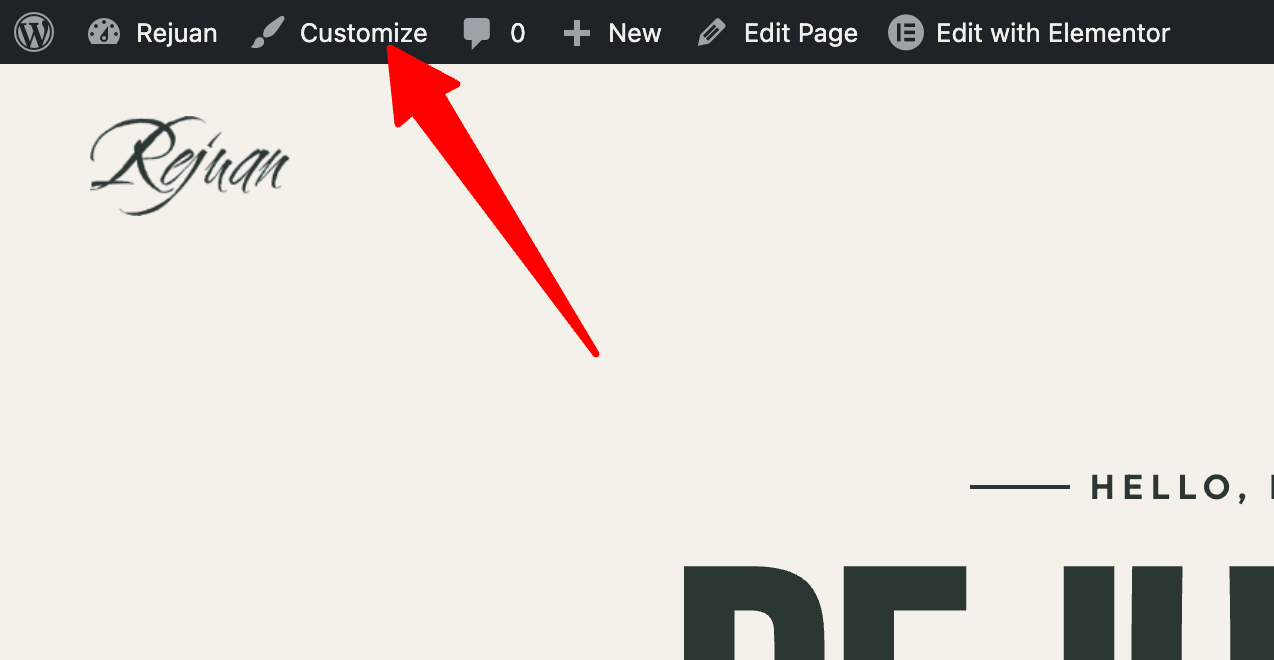
Step 1: While logged in to WordPress as an administrator, go to your site front-end and click Customize
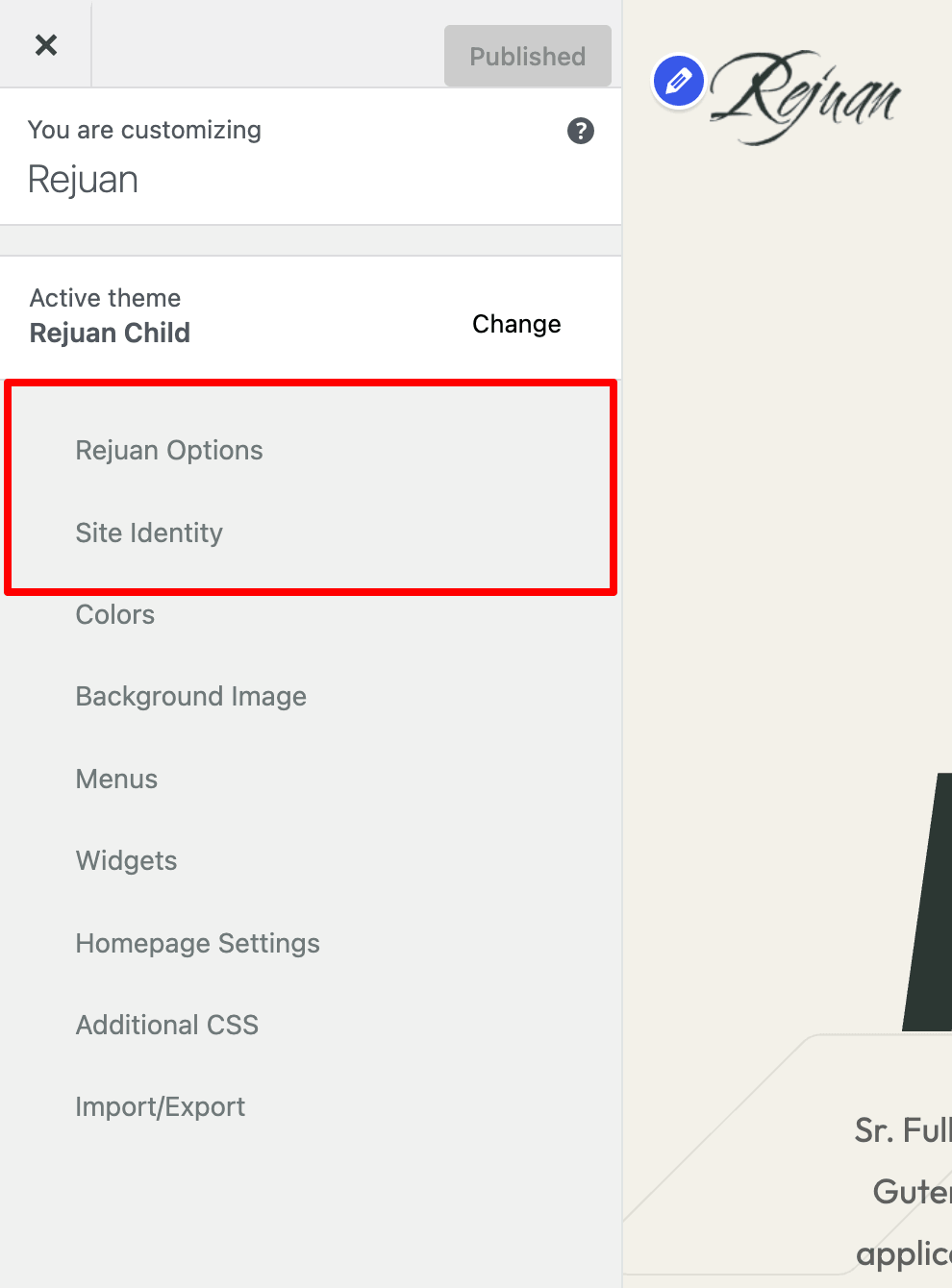
Step 2: You should see a panel on the left side and some handles that you can use for fast widget editing. Customize
Theme Customizer -> Site Identity
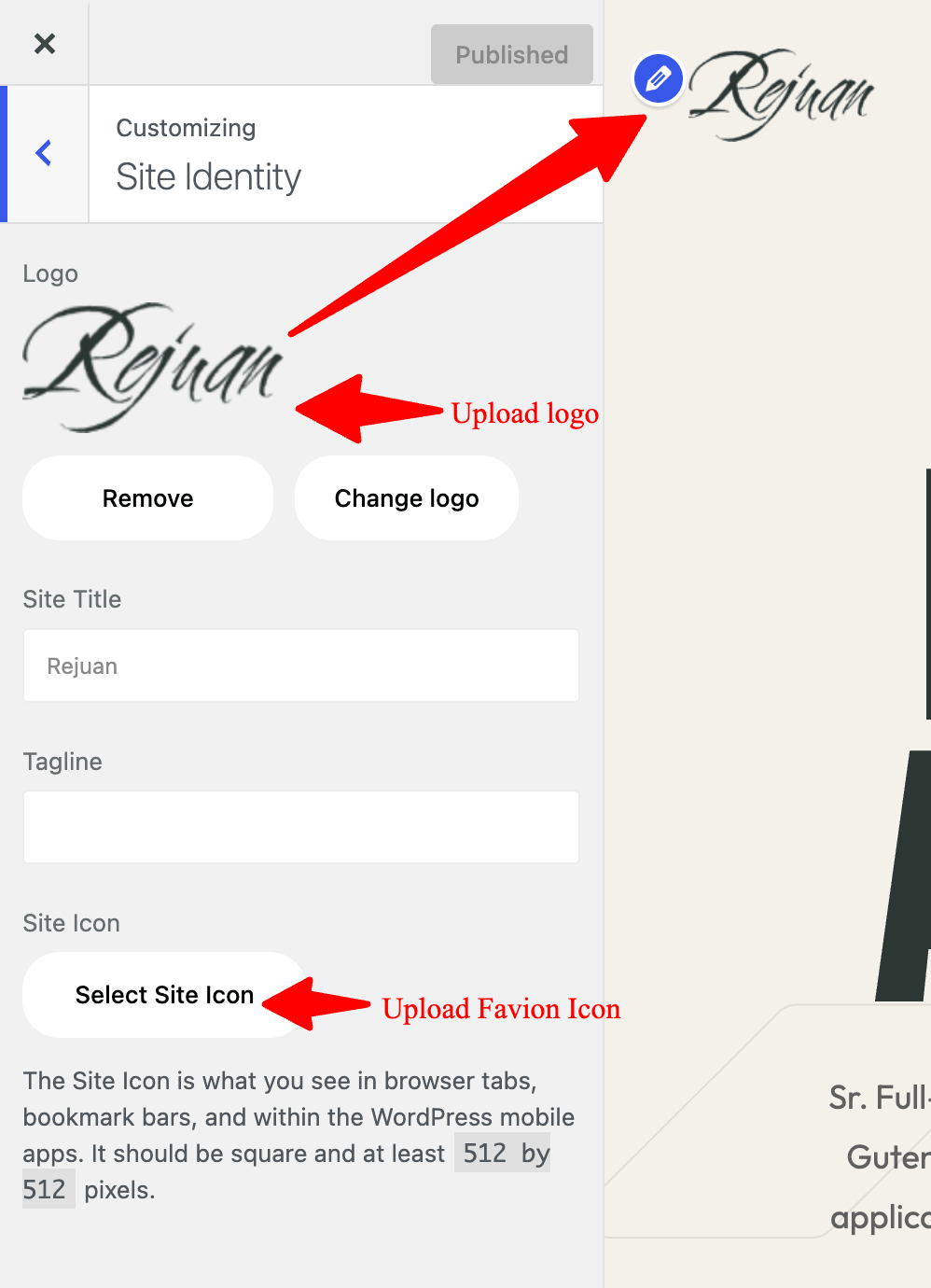
For logo update click Site Identity and upload your logo and favicon icon.
Theme Customizer → Rejuan Options
Rejuan Options is the main customization panel for the theme. From here, you can easily manage and personalize every important aspect of your website without editing any code.
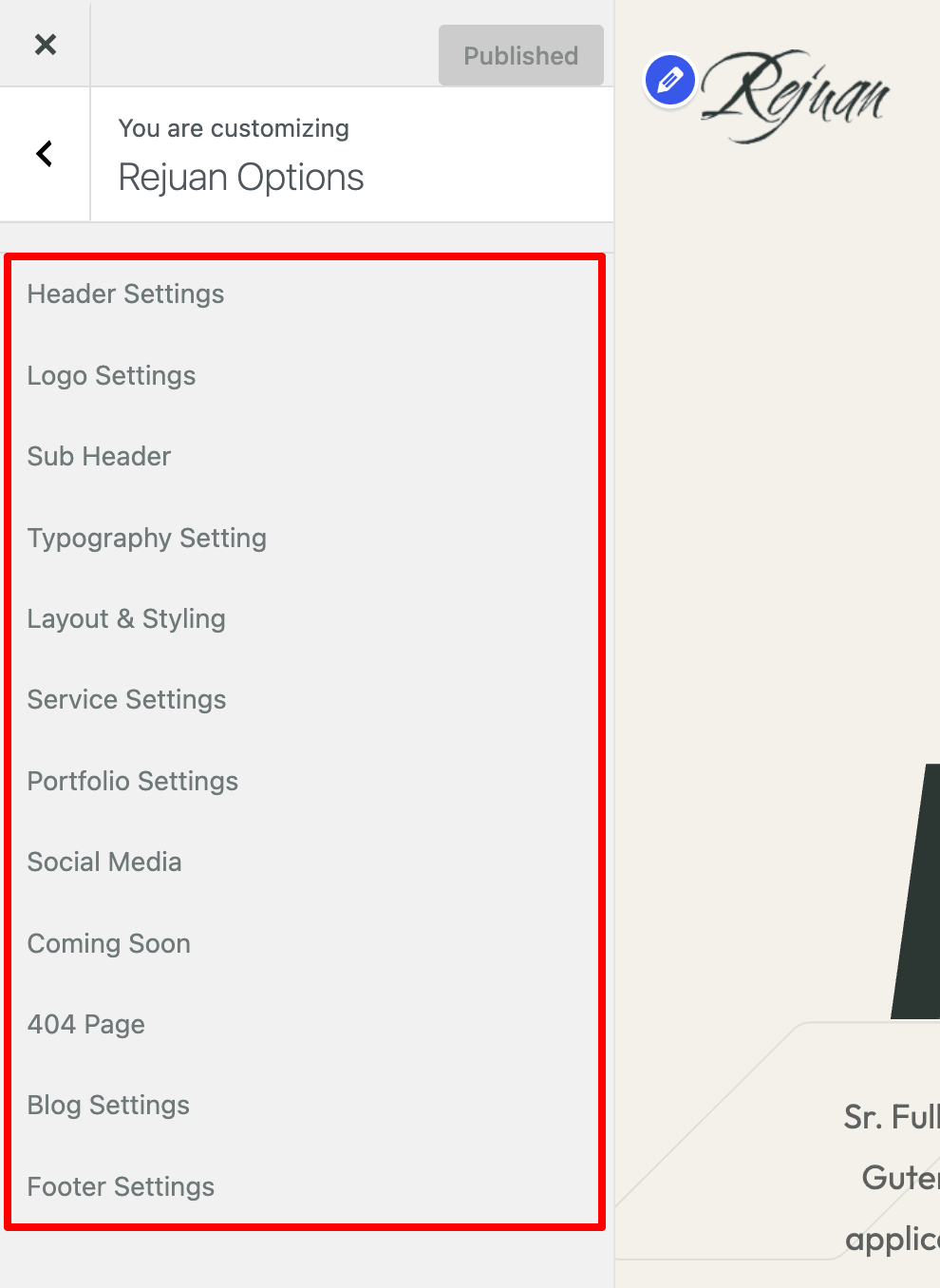
This section includes 12 customization panels:
- Header Settings
- Logo Settings
- Sub-Header Settings
- Typography Settings
- Layout & Style Settings
- Service Settings
- Portfolio Settings
- Social Media Settings
- Coming Soon Settings
- 404 Page Settings
- Blog Settings
- Footer Settings
You can customize typography, including heading and paragraph font sizes, colors, and other text styles. You can also adjust the logo size, configure all sub-header options, customize blog and single blog page settings, change the number of service and portfolio columns, enable or disable portfolio popups, and manage many other theme options—all from a single, user-friendly interface.
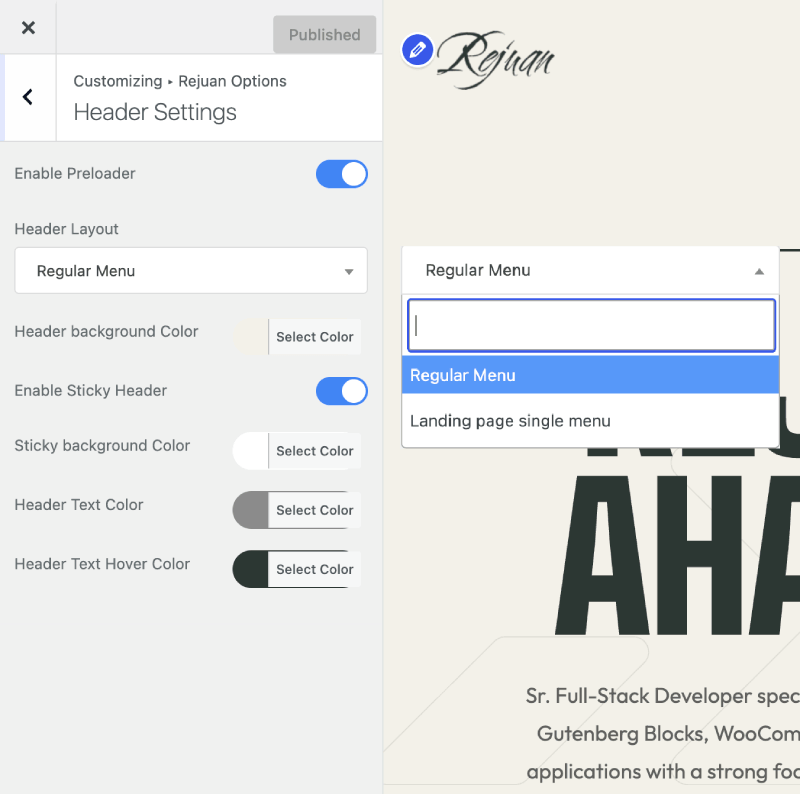
Theme Customizer → Header Settings
- Preloader: Enable/disable site preloader.
- Header Layout: Choose between Regular Menu or Landing page single menu.
- Header Background Color: Set header background color.
- Sticky Header: Enable/disable sticky header.
- Sticky Header Color: Background color for sticky header.
- Header Text Color & Hover Color: Set text colors.
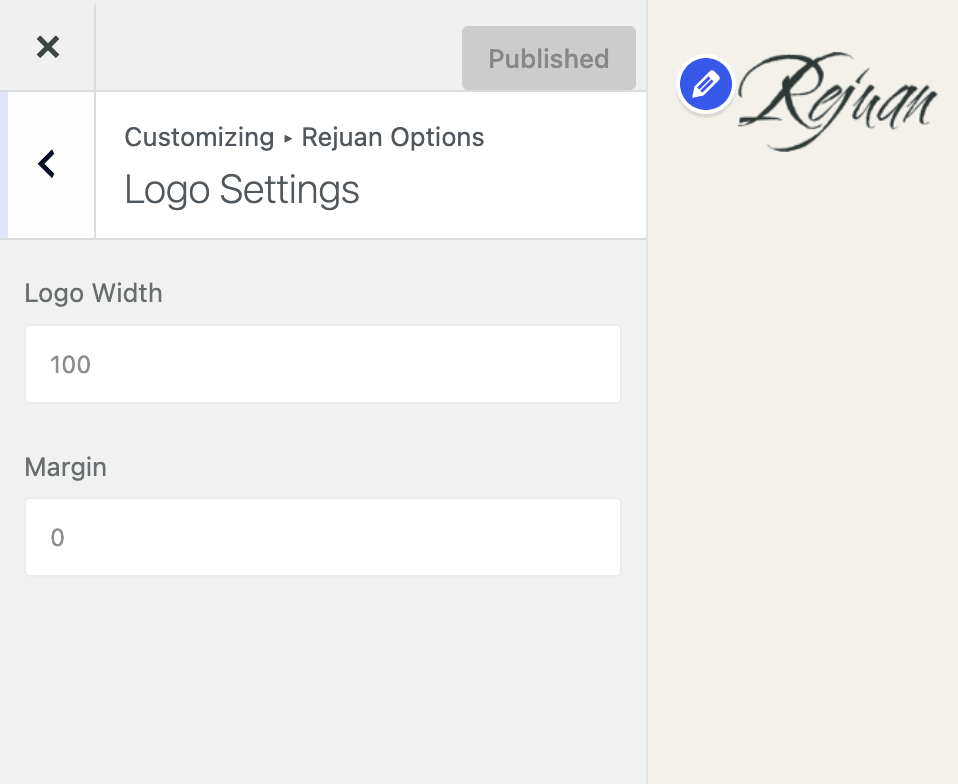
Theme Customizer → Logo Settings
- Logo Width: Adjust logo size.
- Margin: Set logo margin.
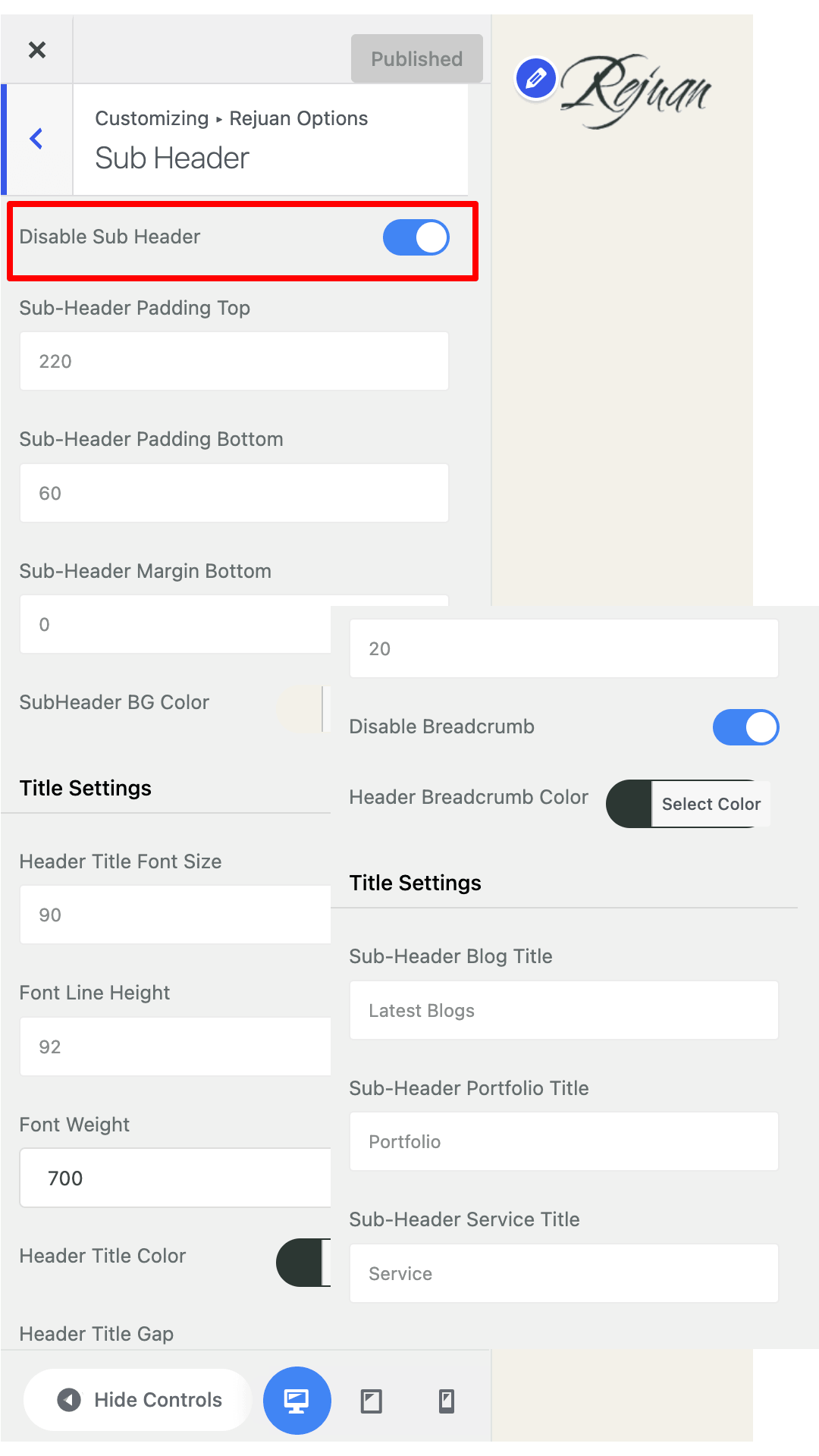
Theme Customizer → Sub-Header Settings
- Disable Sub Header: Toggle sub-header visibility.
- Padding: Configure top/bottom padding.
- Background Color: Set sub-header background.
- Title Settings: Font size, line height, font weight, color, margin.
- Breadcrumb: Enable/disable breadcrumb and set color.
- Custom Titles: Set titles for Blog, Portfolio, and Service pages.
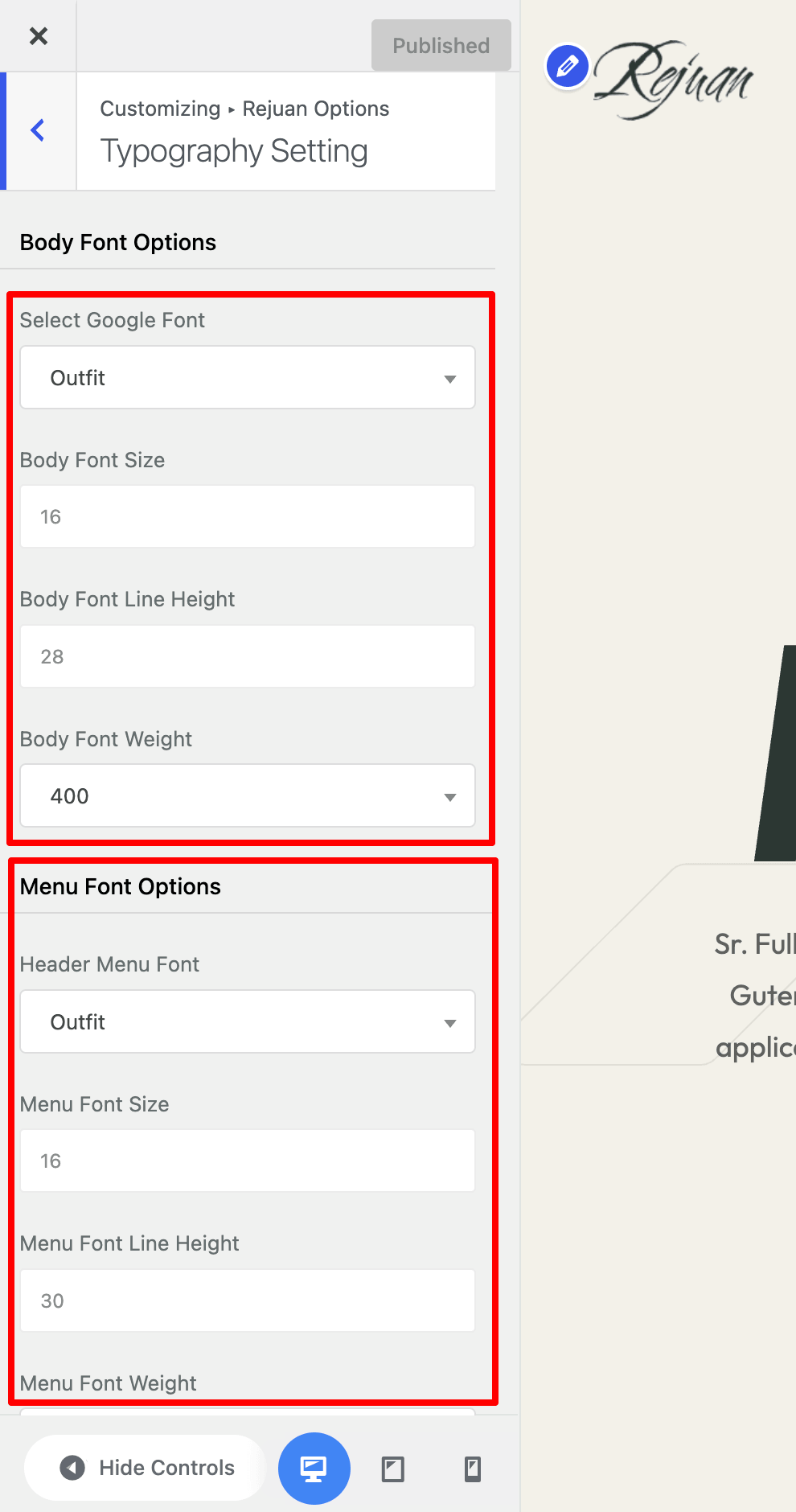
Theme Customizer → Typography Settings
- Body Font: Google font selection, size, line height, weight.
- Menu Font: Font family, size, line height, weight, text transform.
- Heading Font: H1-H6 font settings.
- Paragraph Font: Size and line height settings
Theme Customizer → Layout & Styling
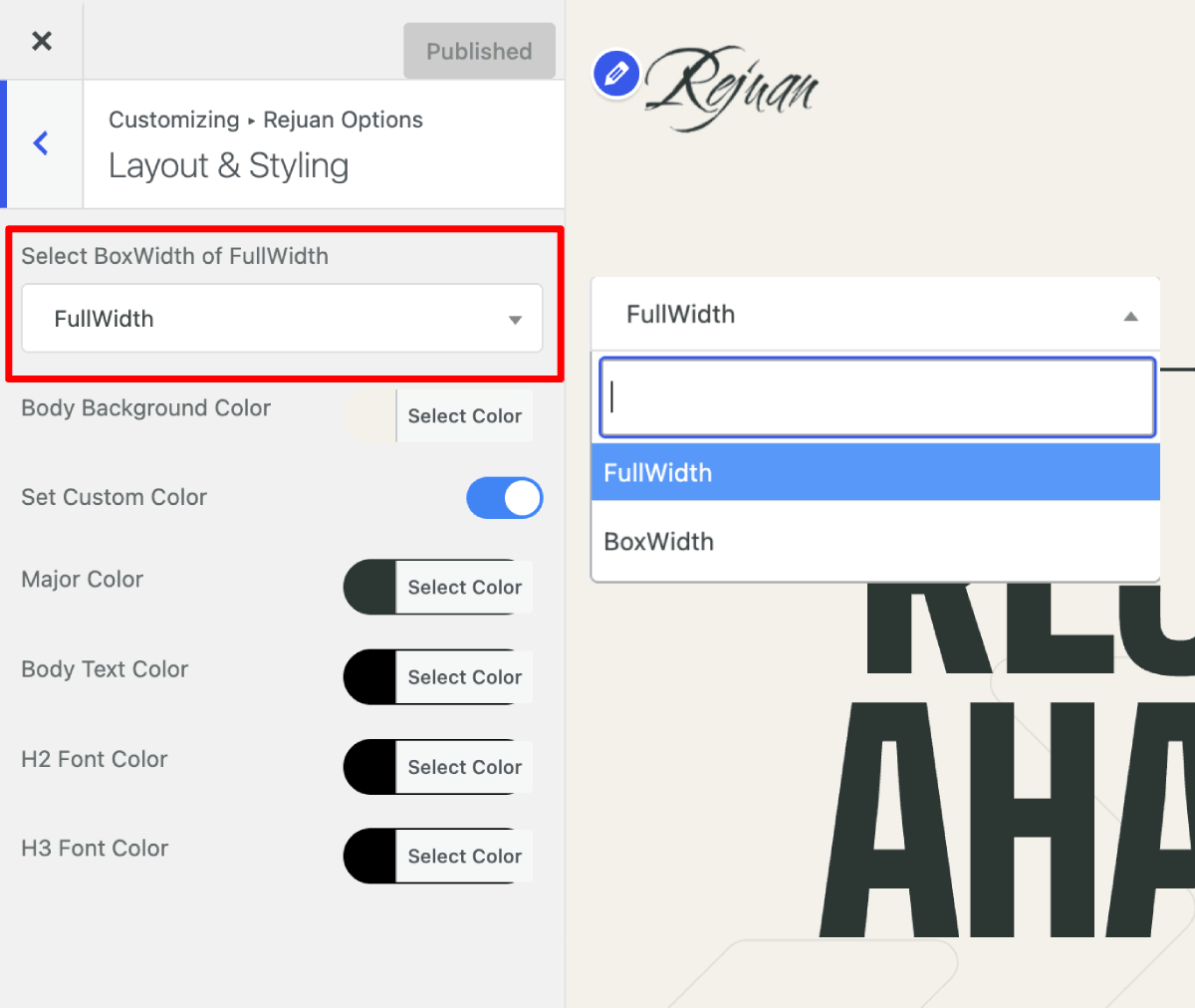
- Layout Type: Fullwidth or Boxwidth
- Body Background: Color, image, attachment, repeat, size, position
- Custom Colors: Major color, body text color, heading colors.
Theme Customizer → Service Settings
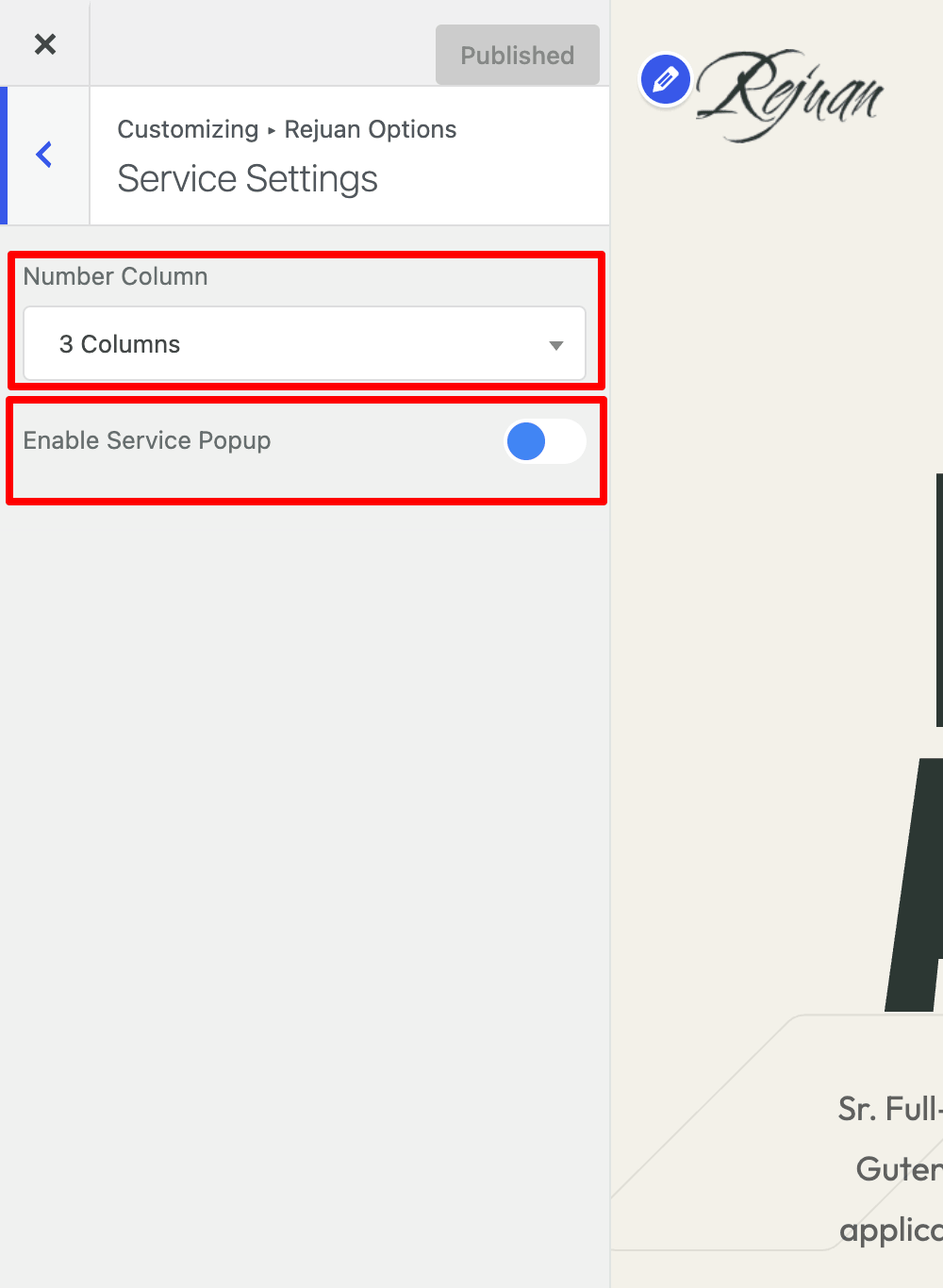
- Column Layout: 1-4 columns
- Popup: Enable/disable service popup. Service archive page - if popup is disable and then service single page will be showing.
Theme Customizer → Portfolio Settings
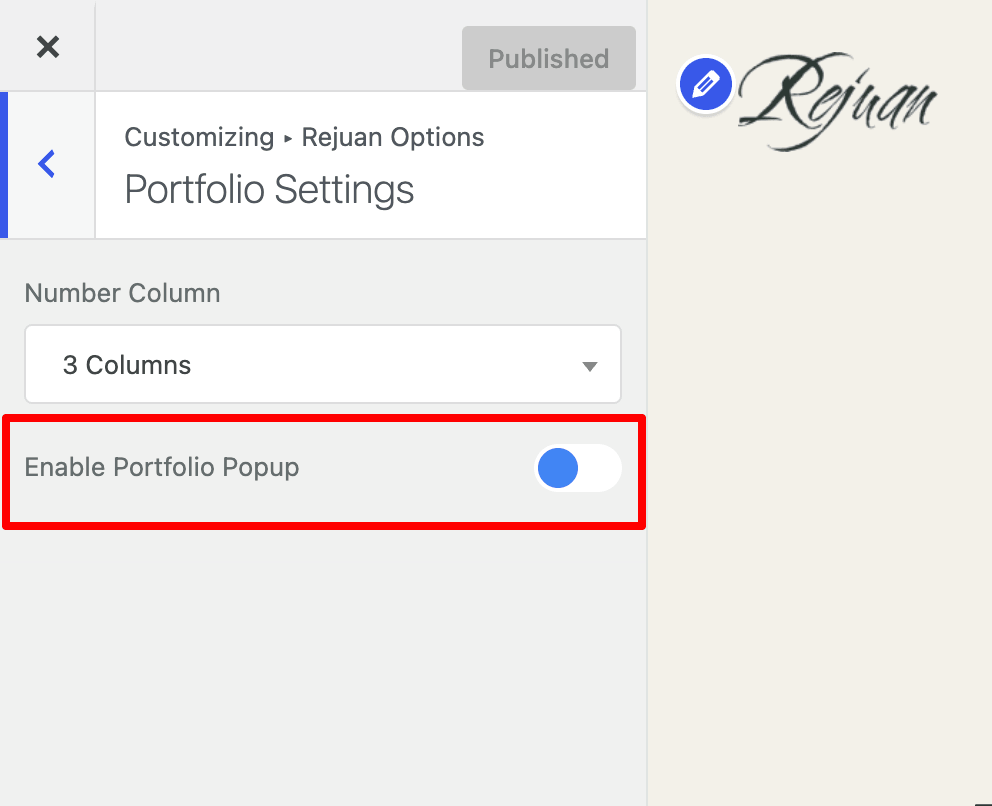
- Column Layout: 1-4 columns
- Popup: Enable/disable portfolio popup. portfolio archive page - if popup is disable and then portfolio single page will be showing.
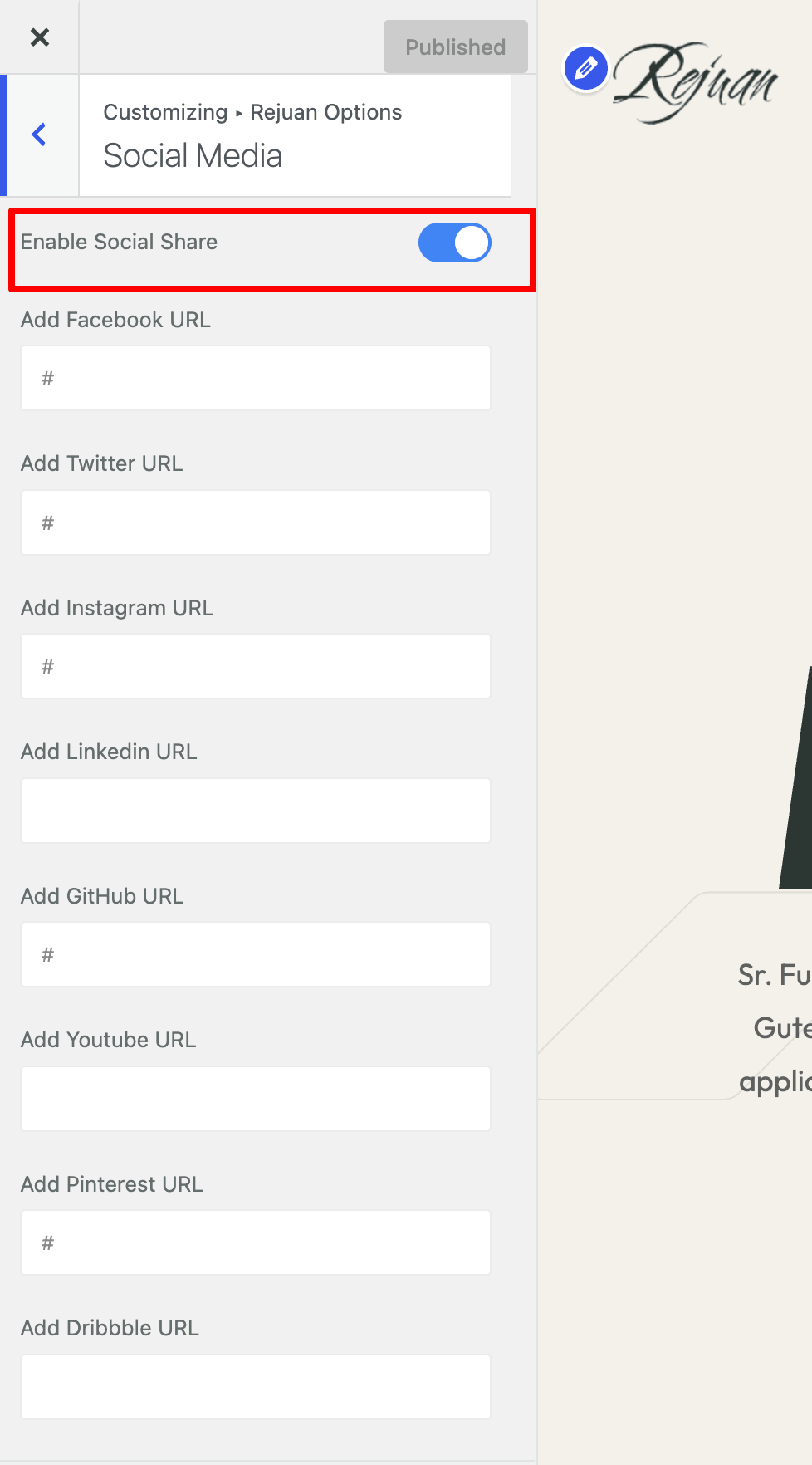
Theme Customizer → Social Media
- Enable Social Share: Toggle social sharing
- Social URLs: Facebook, Twitter, Instagram, LinkedIn, GitHub, YouTube, Pinterest, Dribbble, Behance
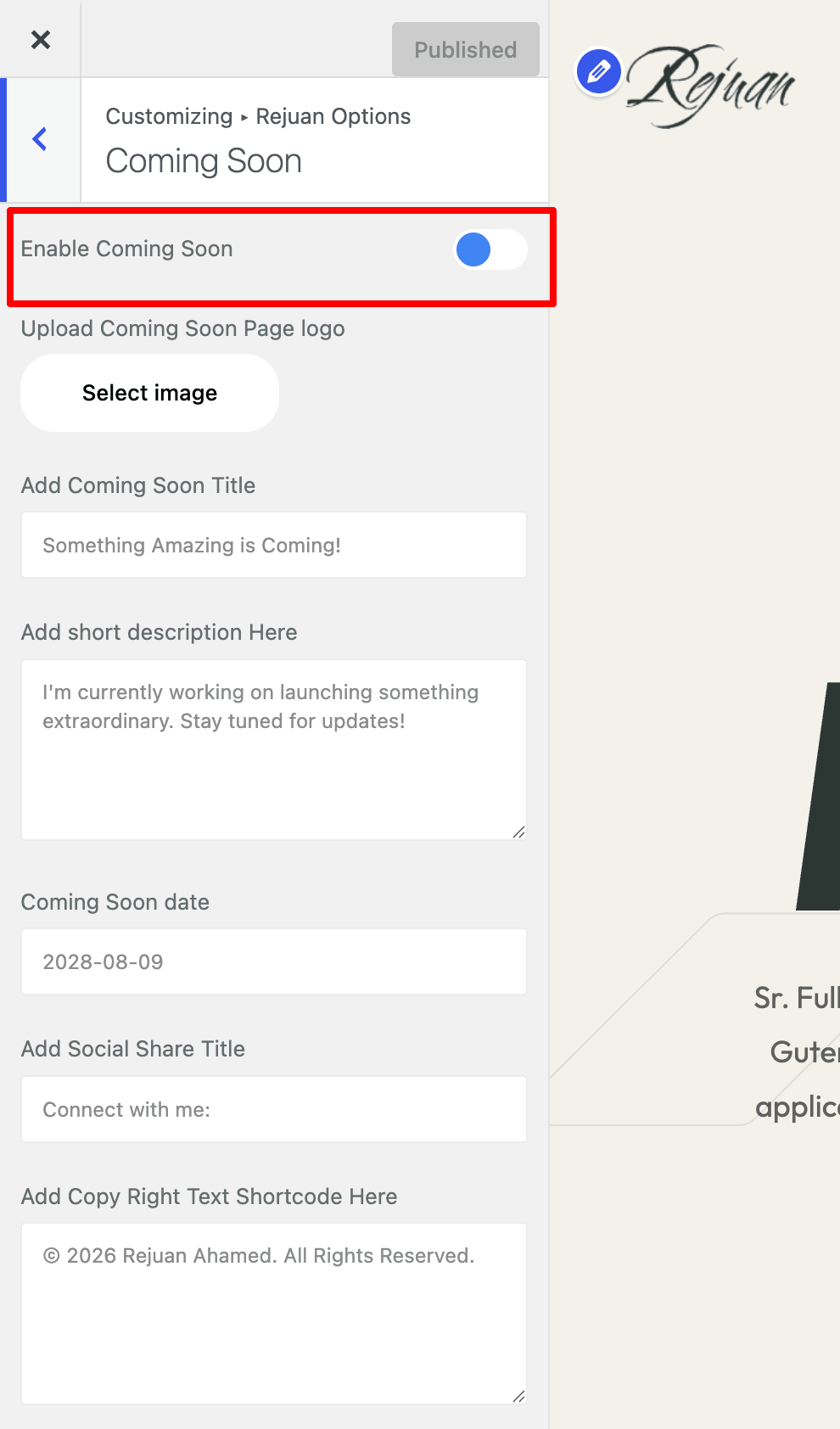
Theme Customizer → Coming Soon
- Enable Coming Soon: Toggle coming soon mode
- Logo Upload: Custom coming soon page logo
- Title & Description: Coming soon content
- Countdown Date: Launch date
- Social Title: Social media section heading
- Copyright: Footer copyright text
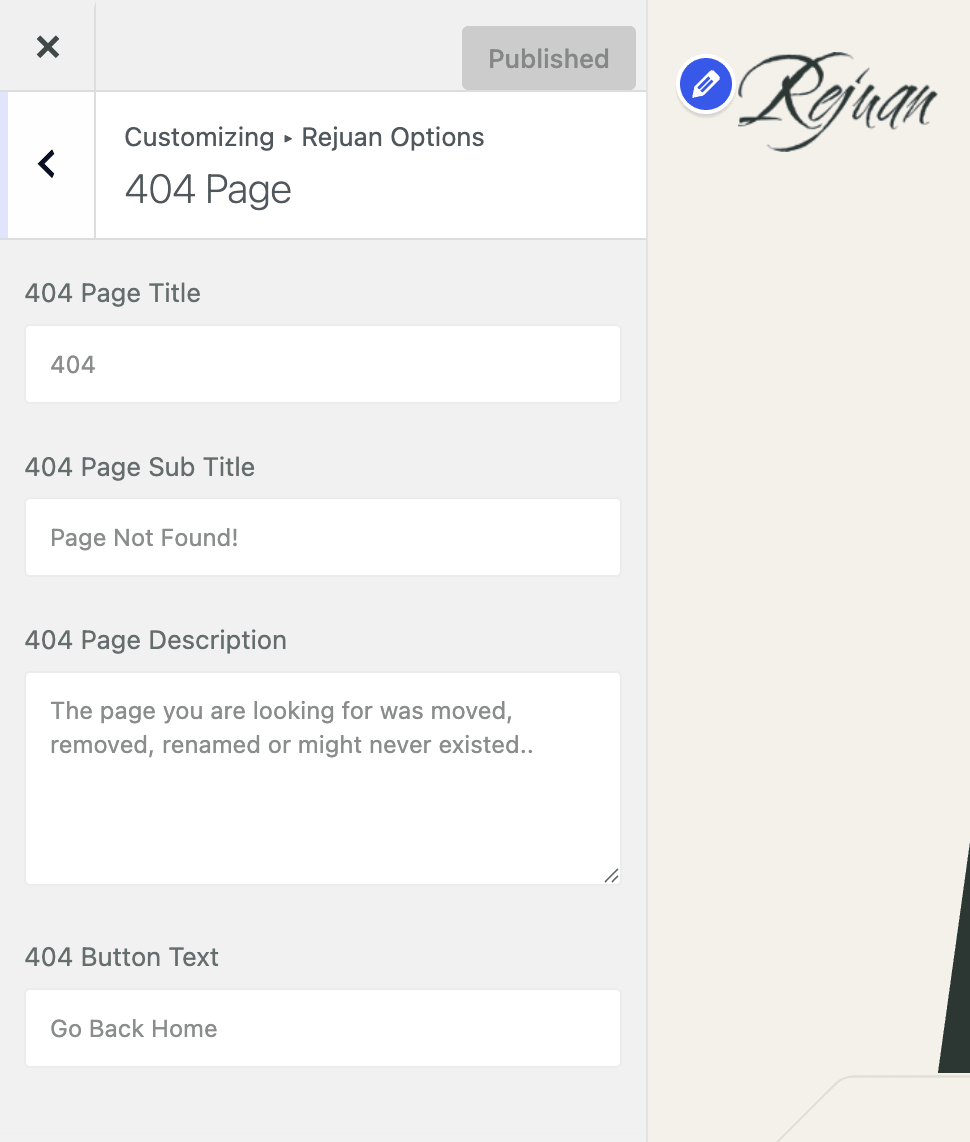
Theme Customizer → 404 Page
- Title, Sub Title, Description: Custom 404 page content
- Button Text: Back to home button text
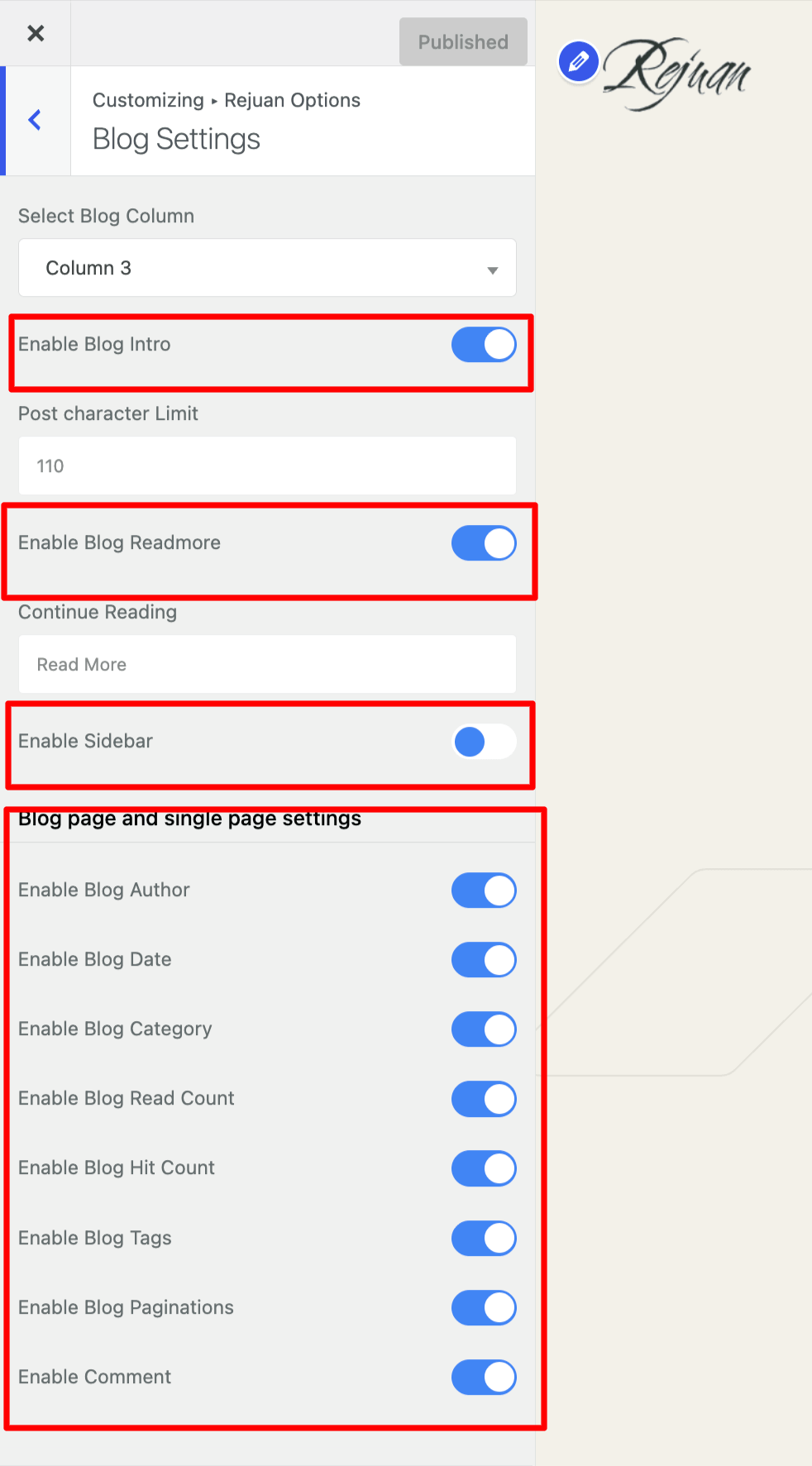
Theme Customizer → Blog Settings
- Column Layout: 1-4 columns
- Blog Intro: Enable/disable intro section
- Post Limit: Character limit for excerpts
- Read More: Enable/disable and customize "Read More" button
- Sidebar: Enable/disable blog sidebar
- Meta Options: Author, date, category, read count, hit count, tags
- Navigation: Enable/disable blog pagination
- Comments: Enable/disable comments
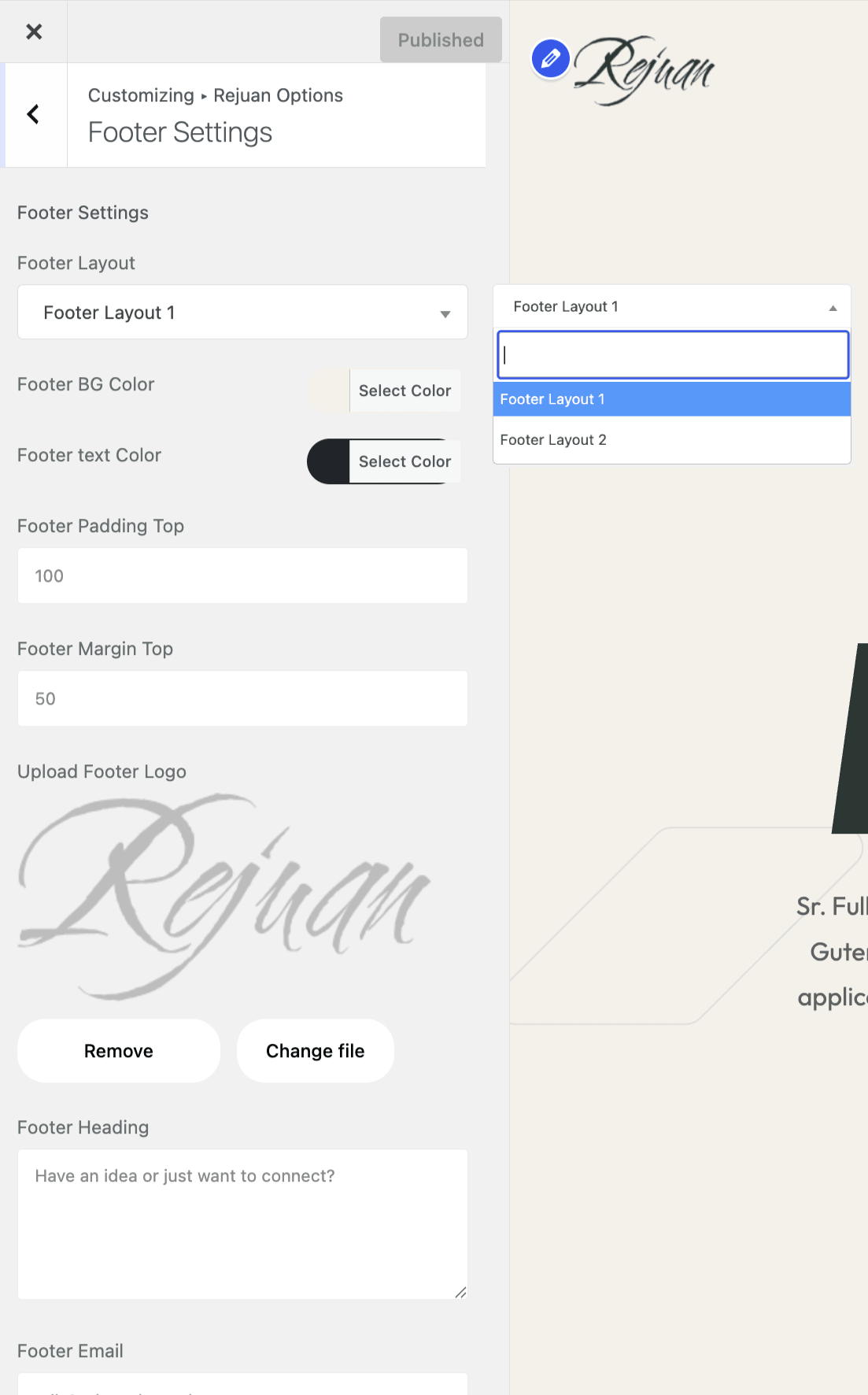
Theme Customizer → Footer Settings
- Footer Layout: Choose between Footer Layout 1 or 2
- Marquee Text: Scrolling text for Layout 2
- Background & Text Colors: Customize footer colors
- Padding & Margin: Adjust spacing
- Logo: Upload custom footer logo
- Heading: Custom footer heading
- Email: Contact email
- Copyright: Footer copyright text
Elementor Widgets
Rejuan Core is a custom WordPress plugin that provides 11 powerful Elementor widgets designed for the Rejuan theme. These widgets help you build professional portfolio, business, and personal websites with ease.
Getting Started
Rejuan is built upon a modern page builder called Elementor. If you haven't used this page builder before, I recommend checking out some useful links first.
Step 1: Go to any page you want to edit and click Edit with Elementor.
Heading Widget
Hero Section Widget
About Section Widget
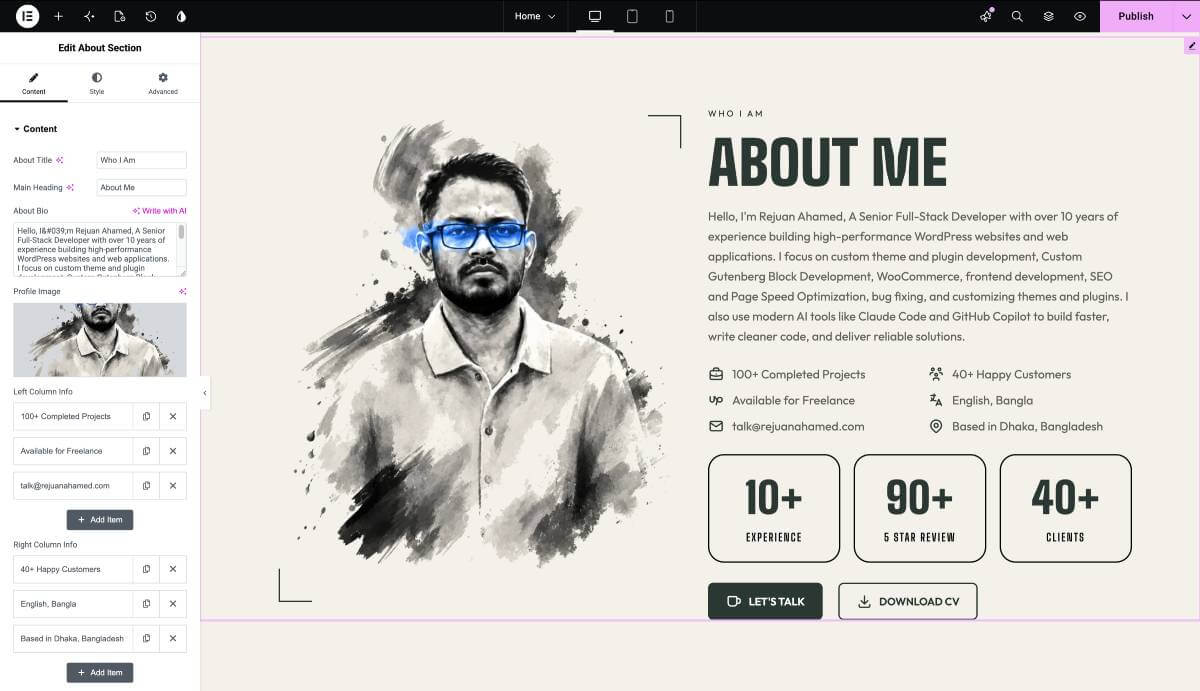
Expertise Section Widget
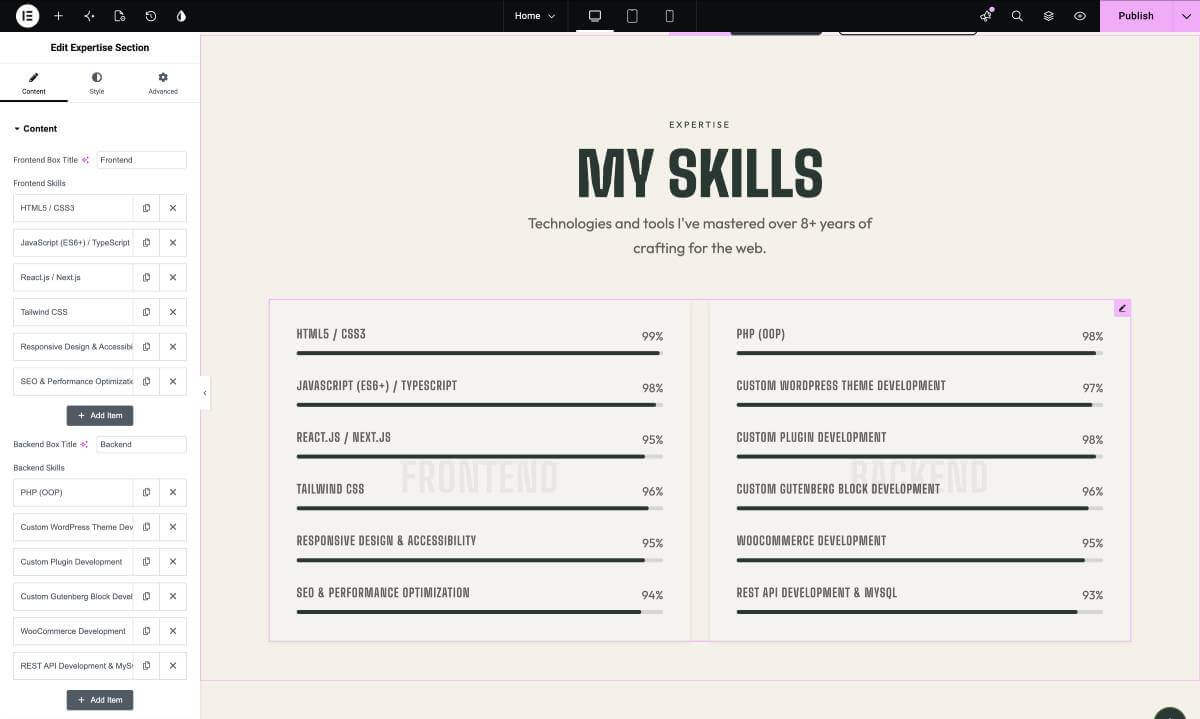
Services Section Widget
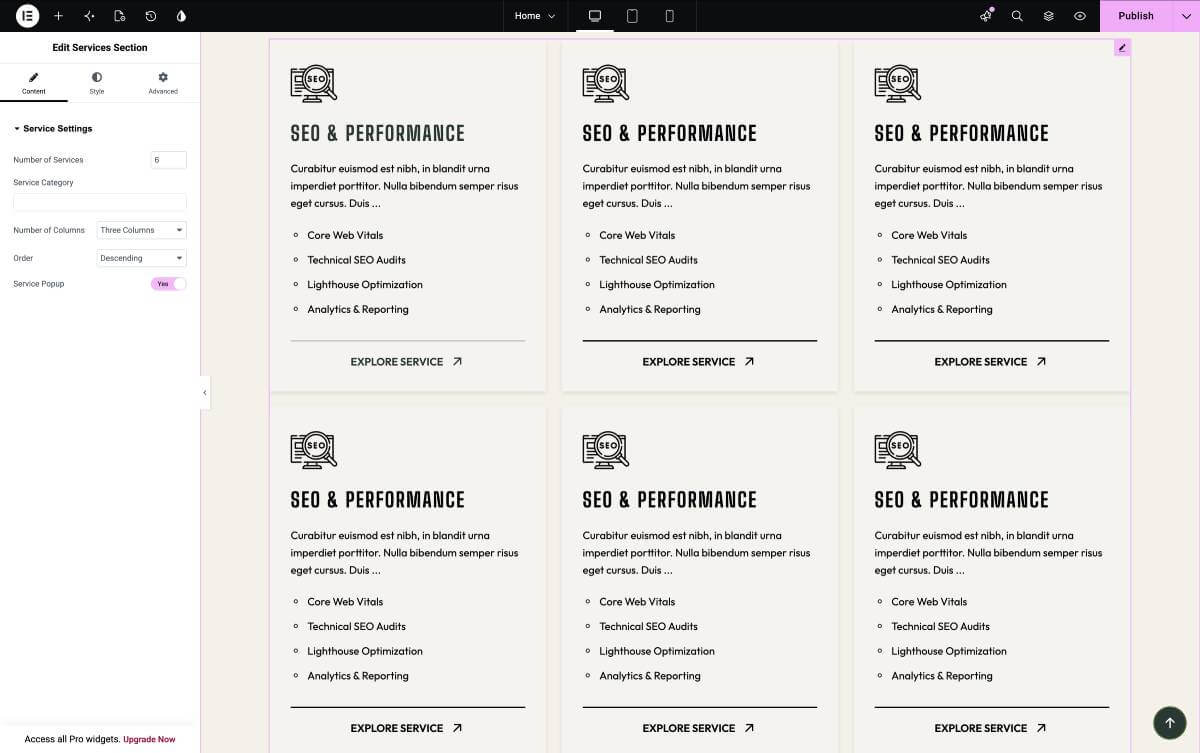
Project List Widget
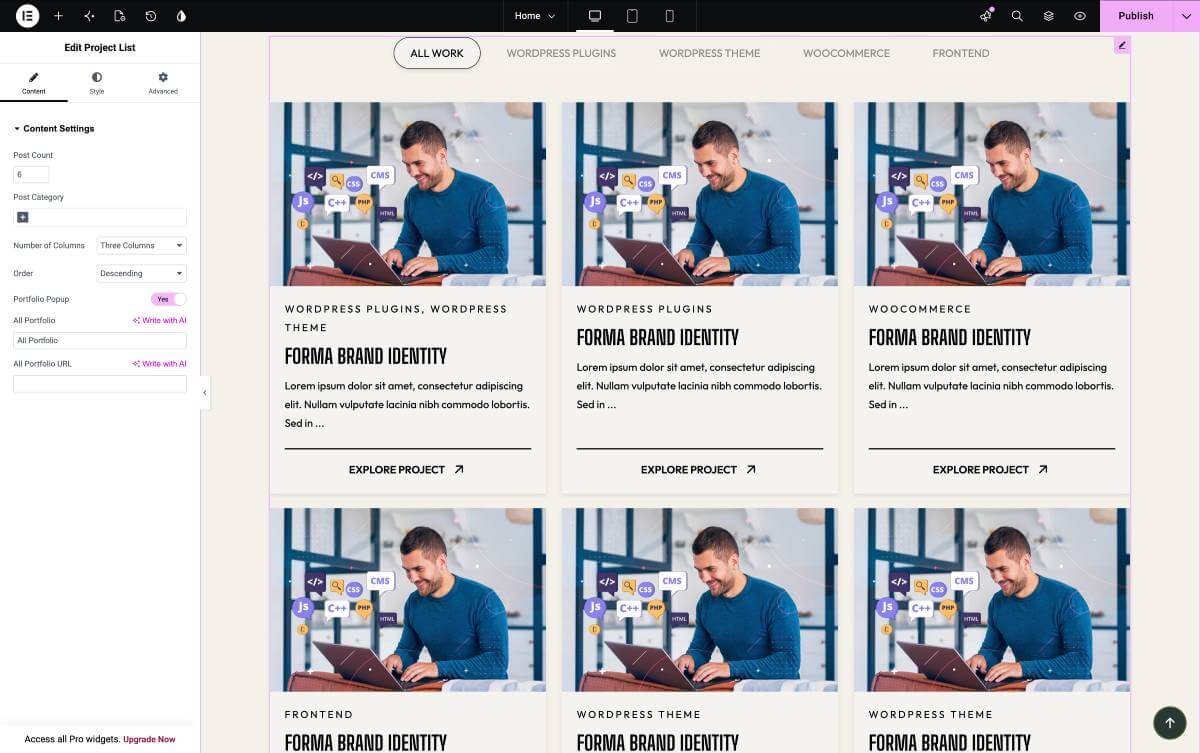
Resume Widget
Pricing Plans Widget
Testimonial Section Widget
Timeline Widget
Blog List Widget
FAQs → How to translate the theme
The easiest way to translate theme to the language of your choice is to use "WPML" plugin.
- To begin, be sure you have the WPML Plugin installed and activated, along with the WPML String Translation plugin.
- To set up WPML the first time, follow their Getting Started Guide.To begin translating, select WPML (in the Dashboard menu) → String Translation. You should see a list of the strings in the theme (there should be only four), with blue translation links to the right. Click these links to reveal the list of languages you use on your blog and the associated translations.
- How to set and translate main features of the theme
- Using translation management http://wpml.org/documentation/translating-your-contents/using-the-translation-editor/
- Translation Management & Features – http://wpml.org/documentation/translating-your-contents/using-the-translation-editor/translation-management-features/
- Translating URL slugs – http://wpml.org/documentation/getting-started-guide/translating-page-slugs/
- How to scan strings coming from the theme
- http://wpml.org/documentation/getting-started-guide/theme-localization/
- How to translate strings using String Translation
- http://wpml.org/documentation/getting-started-guide/string-translation/
- If adjustment is needed for WPML language switcher please also add this
- http://wpml.org/documentation/getting-started-guide/language-setup/custom-language-switcher/
- If you need more help with WPML plugin. Please go WPML Forum
FAQs → How to update Theme
1. Update Theme via Envato Market plugin
Download and install Envato Market plugin here: https://envato.com/market-plugin/
2. Update Theme via WordPress
Updating the theme via WordPress is very similar to the install process via WordPress. Make sure you had backup all of your customization in our theme.
Follow the steps below to update your theme via WordPress:
Step 1 - Download latest theme package on ThemeForest
Step 2 - Log into your WordPress Dashboard.
Step 3 - Go to Appearance → Themes
Step 4 - Deactivate the Rejuan Theme by simply activating a different theme. Once you activate a different theme, you can delete the Rejuan theme.
Step 5 - Delete the Rejuan Theme. Do not worry, your content will not be lost!
Step 6 - Then simply upload the newest “rejuan.zip” file in the Appearance → Themes section. Click on the Install Themes tab at the top and choose to upload the zip file. You have this step explained in section: Theme Installation via WordPress.
3. Update theme via FTP
Updating the theme via FTP is very similar to the install process via FTP.
Follow the steps below to update your theme via FTP:
Step 1 - Go to .../wp-content → themes location on your server using a FTP client and backup your "Rejuan" theme folder by saving it to your computer, or you can choose to simply delete it. Your content will not be lost.
Step 2 - Download the new version of Rejuan theme from your Themeforest and retrieve Rejuan folder by unpacking the zip that you download from Themeforest and rejuan.zip.
Step 3 - Then simply drag and drop the new "Rejuan" theme folder into .../wp-content → themes location. Choose to “Replace” the current one if you did not delete it.
Step 4 - Log into your WordPress Dasrdoard, go to Appearance → Themes and activate the new Rejuan theme.
FAQs → How to create Child Theme
What is a Child Theme?
A child theme is a theme that inherits the functionality of another theme, called the parent theme. Child themes allow you to modify, or add to the functionality of that parent theme. A child theme is the best, safest, and easiest way to modify an existing theme, whether you want to make a few tiny changes or extensive changes. Instead of modifying the theme files directly, you can create a child theme and override within.
Why use a Child Theme?
if you modify an existing theme and it is updated, your changes will be lost. With a child theme, you can update the parent theme (which might be important for security or functionality) and still keep your changes. It’s a great way to get started if you are just learning WordPress theme development.
How to create Create child ?
Follow that documentation to create Child Theme Child Themes - Codex
Using that plugin to create Child Theme : One Click Child Theme
FAQs - How to Speed Optimization
If you think your website takes too much time to load maybe you should.
- Install a Cache Plugin for WordPress. We recommend W3 Total Cache.
- Install an Image Compress Plugin. We recommend WP Smush It.
- Install a Database Optimizer Plugin We recommend WP Optimize
- Reduce the number of posts on the page
- Reduce the number of unnecessary plugins.
- Use more icons and less images.